Audio Production Docking Comparison: Low-Latency Docks
By Omar Haddad • 17th May
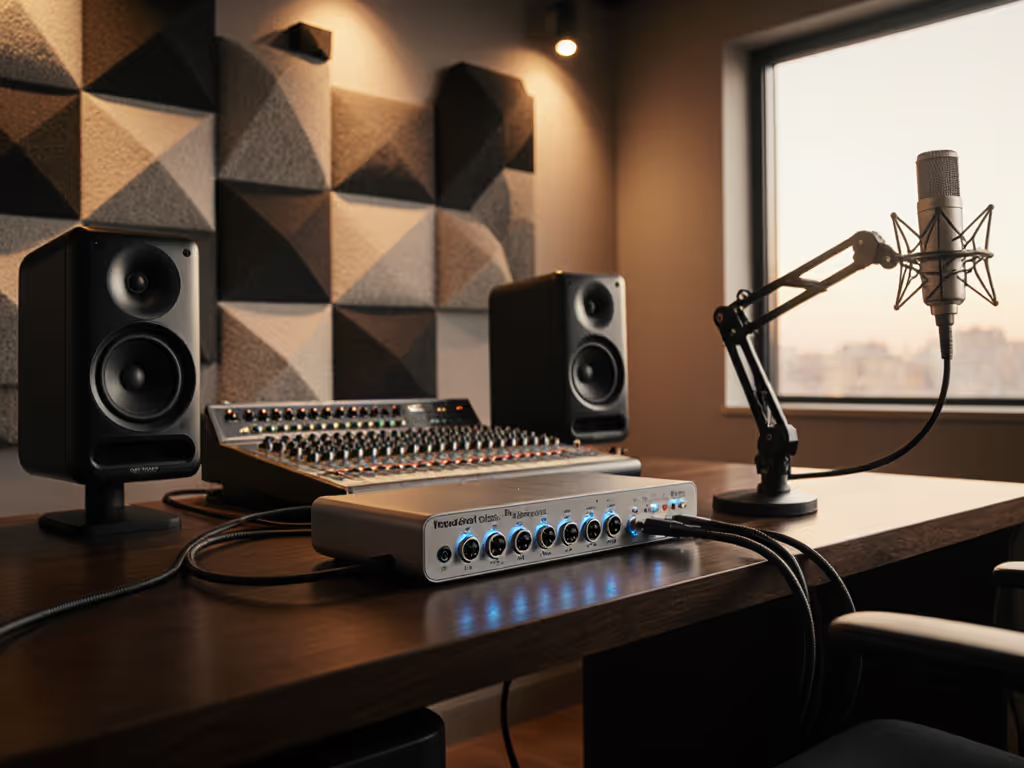
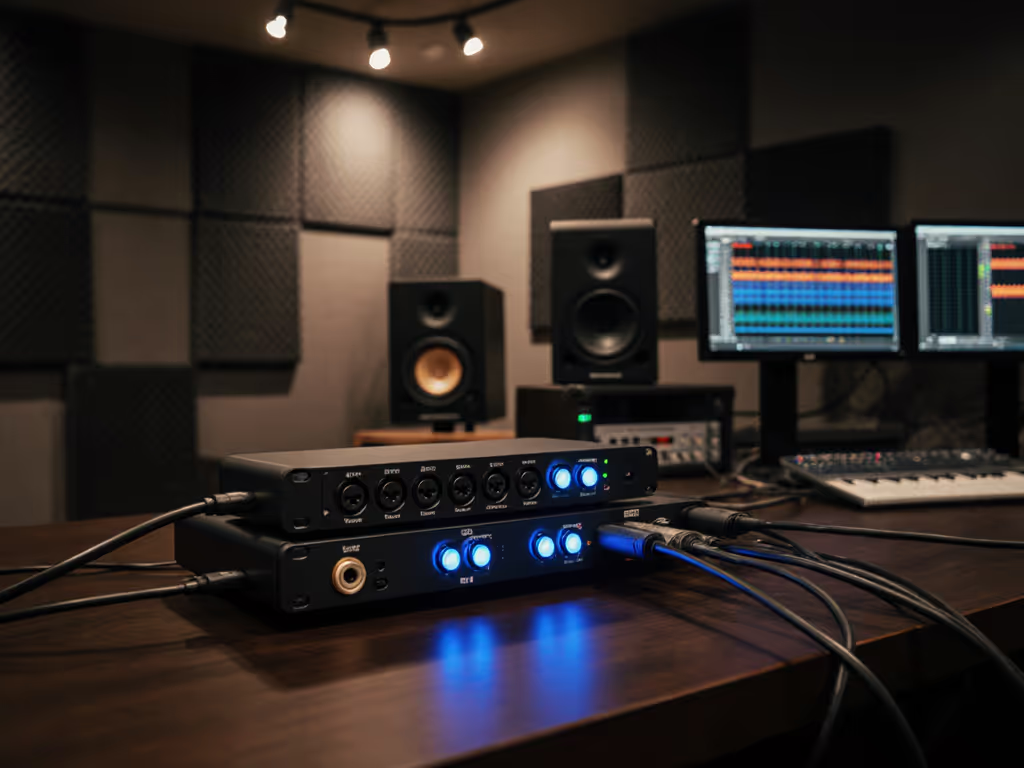
In modern studios, hot desks, and edit bays, the line between "IT workstation" and "studio rig" has blurred. An audio production docking comparison today isn't just about pixels and power; it's about whether your professional audio workstation docks can keep latency low, drivers stable, and support simple one-cable workflows across mixed fleets.
For IT and AV-ops, the challenge is clear: deliver a standard dock kit that audio teams trust for recording, mixing, and content creation, without spawning a special-snowflake hardware zoo.
1. What "Low-Latency" Really Means in a Docked World
When producers say "low latency," they're not talking about network pings; they mean round-trip audio latency:
- Input → A/D conversion → DAW processing → D/A conversion → headphones/monitors.
On a well-configured system, sub-10 ms round-trip is the typical expectation for comfort when tracking vocals or instruments; some are happy up to ~15 ms for editing and mixing.
Where docks come in:
- The dock defines how the audio interface connects (USB, Thunderbolt, networked audio, or built-in audio codec).
- The dock's internal hub topology and bandwidth sharing can add USB scheduling jitter or contention, which shows up as crackles, dropouts, or the inability to run at low buffer sizes.
So the question isn't "does the dock sound good?" it's:
Can this docked setup hold a stable 64-128 sample buffer at 44.1/48 kHz under real project loads, without glitches?
That's the core of low-latency audio performance in a docking context. For a focused look at dock features tuned for studio workflows, see our studio-grade audio docking comparison.
2. Dock Architectures and Their Impact on Audio
Before you pick a standard, you need to know what you're really buying under the hood.

2.1 Thunderbolt 3/4 and USB4 Docks
How they work
- Thunderbolt tunnels PCIe and DisplayPort directly.
- USB4 brings much of the same concept; many "USB4" docks are effectively TB-compatible.
Implications for audio
- USB audio interfaces on a TB dock typically behave like a direct USB connection to the host.
- Plenty of bandwidth for simultaneous multichannel audio + multiple 4K displays + high-speed storage.
- Best option for workstations and MacBook Pro/Studio in audio production roles. If you're weighing Thunderbolt 4 vs USB4 for audio, this guide clarifies real display and bandwidth limits.
For serious music production docking solutions, a Thunderbolt 4 dock with:
- At least 90-100 W host charging,
- Multiple 10 Gbps USB-A ports on separate internal hubs, and
- 2+ downstream TB/USB4 ports
is the practical sweet spot.
2.2 USB-C "Alt Mode" Docks (Non-Thunderbolt)
How they work
- The dock uses USB-C DisplayPort Alt Mode for video and shares the remaining USB bandwidth for peripherals.
- Often based on USB 3.x hub chipsets.
Implications for audio
- Fine for 2-in/2-out USB audio interfaces at moderate sample rates and buffer sizes.
- Once you stack high-res displays, external SSDs, and multiple USB devices, the bus can saturate.
- Under load, some docks introduce stuttering at small buffers (64/128 samples) on mid-range laptops.
These are acceptable for editing and light production, but I don't standardize them as primary pro audio workstation docks when Thunderbolt is an option.
2.3 DisplayLink and Other USB Graphics Docks
How they work
- GPU output is compressed by software and sent over USB to a DisplayLink (or similar) chip in the dock.
- Great for pushing many displays from limited host GPUs.
Implications for audio
- CPU/GPU load is higher; some real-world tests show buffer underruns when sessions are heavy and several DisplayLink displays are active.
- Additional drivers (DisplayLink, agents, kernel extensions) increase driver fragility and regression risk with OS updates.
For editing-only stations, DisplayLink can be acceptable. For live tracking or time-critical work, I recommend avoiding DisplayLink docks and sticking to TB/USB4 or pure Alt Mode.
3. Core Requirements for Professional Audio Workstation Docks
A universal docking station that works for knowledge workers isn't automatically good for audio. For low-latency audio performance, look for:
3.1 Stable, Predictable USB Topology
- Docks with multiple downstream ports should isolate high-bandwidth devices.
- Prefer:
- One port dedicated to the audio interface.
- Another for storage.
- Others for low-demand peripherals.
- On some docks, all USB-A ports hang off one hub. In testing, that's where you see clicks and pops when copying large files during tracking.
3.2 Sufficient and Stable Power Delivery
Audio incidents often trace back to marginal power: Get exact wattage and charging guidance in our USB-C power delivery guide.
- For mobile workstations, target docks that provide 90-100 W minimum; 130 W for heavier CAD/audio/video laptops where OEM support exists.
- Ensure the dock delivers consistent 5 V/900 mA or 1.5 A on the USB port feeding the audio interface.
- Avoid bus-powering large interfaces through cheap front-panel hubs; go dock → interface directly, and use external PSUs where possible.
3.3 Networking That Doesn't Flap Mid-Session
Many studios sync licenses, stems, or session files over the network while tracking.
- Choose docks with stable Gigabit Ethernet chipsets and, ideally, MAC address pass-through support for network policies.
- Validate WOL/PXE only if required; more firmware complexity can increase failure modes.
3.4 Display Requirements Without Overkill
Audio workstations typically:
- Use dual QHD or dual 4K60 for DAWs plus meters/plug-ins.
- Rarely need 120 Hz or exotic ultrawide resolutions.
If you keep displays within dual 4K60 over DisplayPort, Thunderbolt docks handle this easily without stressing the system. That leaves more performance headroom for the DAW. For cabling and OS tweaks, follow our dual monitor docking setup guide.
4. Built-In Dock Audio vs External DACs and Interfaces
This is where a built-in DAC quality comparison becomes relevant.
4.1 The Reality of Dock Audio Codecs
Most mainstream docks integrate a simple audio codec to expose a 3.5 mm headset jack. Typical traits:
- Designed for voice calls and system sounds, not critical listening.
- Noise floor and crosstalk are usually adequate but not competitive with real audio interfaces.
- Driver support is generic, but implementations vary; some docks expose audio only over USB Audio Class 1, limiting format options.
For Teams/Zoom, this is fine. For mixing, mastering, or detailed editing, built-in dock audio is rarely acceptable. See measured audio interface dock latency tests to pick the right path.
4.2 External USB Audio Interfaces: The Gold Standard
For serious recording and monitoring, the answer is still:
- Dedicated USB or Thunderbolt audio interface from a pro vendor.
- Native low-latency drivers (ASIO/Core Audio), stable to 64-128 sample buffers at 44.1/48 kHz.
- Balanced outputs, proper metering, word clock in some cases.
In many fleets, however, a full interface at every hot desk is cost-prohibitive. That's where a hybrid strategy comes in.
4.3 Dongle DACs as an Upgrade Path
For edit bays, content teams, and power users who need much better monitoring than the dock jack but don't need full studio I/O, a USB DAC/headphone amp is an efficient TCO play.
The AudioQuest DragonFly Cobalt is a representative example of this class: a compact USB DAC, preamp, and headphone amplifier that effectively bypasses the PC's or dock's analog stage entirely. It uses an ESS ES9038Q2M DAC chip, supports PCM up to 24-bit/96 kHz, and presents itself as a standard USB audio device to Windows, macOS, and most Linux distributions.
A few operational advantages for enterprise/studio fleets:
- Driverless, class-compliant design up to 24/96 aligns well with corporate images locked down against custom drivers.
- Compact enough to be part of a standard audio kit: plug into any dock or laptop USB-A/USB-C port.
- Acts as a variable output preamp for powered speakers or as a fixed output into a monitor controller.
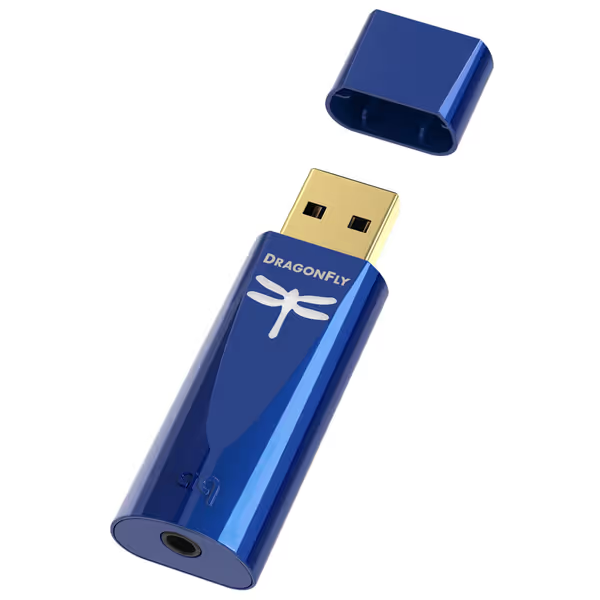
AudioQuest Dragonfly Cobalt USB DAC
Elevate your audio: unparalleled clarity and depth from any device.
$199.95
Native Resolution24-bit / 96kHz
Native Resolution24-bit / 96kHz
Pros
Significantly enhances sound clarity and depth across all music files.
Compact and highly portable for on-the-go audiophile quality.
Cons
Requires adapter for mobile device use (Lightning/USB-C to USB-A).
Premium price point for a USB DAC.
Customers report a significant improvement in sound quality, noting a clearer, deeper, and more open audio experience with better defined vocals and bass. Many users, including those not considering themselves audiophiles, found the enhancement noticeable.
Customers report a significant improvement in sound quality, noting a clearer, deeper, and more open audio experience with better defined vocals and bass. Many users, including those not considering themselves audiophiles, found the enhancement noticeable.
Third-party measurements show the Cobalt isn't the absolute top of the SINAD charts versus newer dongles, but it still delivers clean, neutral conversion well beyond what typical dock codecs manage. More importantly for IT teams, it's predictable and easy to deploy.
In practice, I deploy dongle DACs like this as a step-up monitoring option for edit stations and hybrid creators, not as a replacement for full interfaces in tracking rooms.
5. Audio Production Docking Comparison by Persona
Let's turn this into concrete guidance. Below is how I design music production docking solutions by user type.
5.1 Tracking & Production Rooms (Live Inputs)
Goal: Lowest practical latency; rock-solid under heavy CPU loads.
Recommended dock architecture
- Thunderbolt 4/USB4 dock with:
- 90-100 W (or higher) PD,
- Dual DP/HDMI capable of dual 4K60,
- At least two 10 Gbps USB-A ports on separate hubs.
Audio path
- Dock → dedicated audio interface (USB/TB) → monitors/headphones.
- Avoid chaining the interface through front-panel, low-power, or unlabelled hubs.
Why not rely on dock audio or dongle DACs here?
- Tracking rooms need mic preamps, line inputs, instrument inputs, and cue mixes which dongle DACs don't provide.
- You also want tightly optimized pro audio drivers and sometimes hardware DSP.
5.2 Editing, Mixing, and Content Creation Bays
Goal: Low-enough latency for soft-synths and detailed editing; excellent monitoring quality; flexible hot-desking.
Recommended dock architecture
- Thunderbolt 4/USB4 or high-quality USB-C Alt Mode dock:
- Dual 4K60 support,
- Stable Ethernet,
- Multiple USB-A ports.
Audio path options
- Full interface for heavy users.
- Dongle DAC (e.g., DragonFly Cobalt) + dock for teams primarily doing editing, video, or light overdubs.
Operationally:
- IT can standardize on one dock SKU and offer two audio kits:
- Standard kit: dock audio or dongle DAC for headphones.
- Studio kit: dock + dedicated interface.
This keeps procurement and spares simple while letting you right-size cost per seat.
5.3 Hybrid Hot-Desks for Creators
Goal: Any MacBook/Windows laptop plugs in and is "good enough" for serious creative work, including audio.
Recommended dock architecture
- Thunderbolt 4/USB4 universal docking station with:
- 96-100 W PD,
- Dual 4K60 or better,
- At least one front-accessible USB-C and one USB-A for quick audio interface/DAC plug-in.
Audio strategy
- Bake a dongle DAC into the standard hot-desk kit for reliable headphone monitoring.
- Keep a shared pool of full audio interfaces that can be checked out for tracking days.
This is where the mantra applies: One cable, one image, one playbook. Standardize the desk; let the specialist gear rotate.
6. Standard Kits, Lifecycle, and TCO
Docks live for 3-5 years in most organizations; audio roles and OS images change faster. The cheapest path is to reduce variables.
6.1 Why Fewer SKUs Matter More in Audio
Every new dock SKU means:
- Another firmware baseline to track.
- Another set of driver interactions with ASIO/Core Audio.
- Another set of edge cases for sleep/wake, hot-plug, and bandwidth contention.
In audio environments, these multipliers are brutal. Whether you're dealing with Pro Tools license servers or a lab full of DAW students, the support burden scales with variety.
Standardize the kit, and your tickets standardize themselves.
In one environment I worked with, collapsing a dozen mixed docks into a single Thunderbolt 4 kit (plus a known-good cable set) quietly wiped out a huge chunk of audio and display tickets. The same logic applies when you add a consistent DAC/interface choice on top.
6.2 Designing the "Audio Creator" Standard Kit
For most organizations, a long-lived, procurement-friendly standard looks like this:
- Dock: TB4/USB4 model validated across your current Dell/HP/Lenovo/Apple mix.
- Cables:
- 0.8-1 m 40 Gbps USB-C/TB4 cable, E-marked.
- 2x labeled DP cables for dual monitors.
- Audio:
- Baseline: dongle DAC (e.g., DragonFly class device) per desk.
- Upgrade path: approved list of USB/TB audio interfaces for tracking rooms.
- Documentation:
- Clear port maps ("Audio interface must use rear USB-A port 1").
- Buffer and sample rate presets tested per DAW.
A consistent kit also simplifies spares stocking and global rollout, no region-specific improvisations by local resellers.
7. Implementation Checklist for IT and AV-Ops
When you pick or revise your audio-capable dock standard, walk through this list:
- Choose architecture
- Thunderbolt 4/USB4 as default for audio roles.
- Avoid DisplayLink for tracking rooms.
- Set power targets
- 90-100 W minimum host PD for workstations.
- Confirm dock can supply adequate power to downstream USB devices.
- Map USB topology
- Identify "preferred" ports for audio interfaces.
- Avoid putting high-IO interfaces and external SSDs on the same hub when possible.
- Test with real DAW projects
- On representative Windows/macOS builds, run your common DAWs.
- Validate stable operation at 64 and 128 sample buffers at 44.1/48 kHz.
- Compare audio options
- Built-in dock audio for voice only.
- Dongle DAC for editing/mixing and content roles.
- Full interface for recording rooms.
- Lock in firmware and drivers
- Establish a supported firmware baseline for the dock.
- Document the exact audio driver versions and OS builds tested.
- Create a support playbook
- 1-page guide: "If audio crackles, check these three things first."
- Include known-good DAW buffer settings and USB port mapping.
Once this is in place, rolling out new rooms or desks becomes a repeatable process instead of an experiment.
Final Verdict: Choosing the Right Music Production Docking Solutions
For professional audio workstation docks, the pattern is clear:
- Thunderbolt 4/USB4 docks are the right foundation for low-latency, mixed-OS fleets.
- Built-in dock audio is acceptable for conferencing, but not for critical monitoring.
- Dedicated audio interfaces remain the standard in tracking and high-end production rooms.
- Dongle DACs like the DragonFly Cobalt offer a high-quality, driver-friendly upgrade over dock jacks for editors, creators, and hybrid workers, at far lower complexity than deploying full interfaces everywhere.
If you standardize around a single, proven dock SKU and a small, well-tested audio kit matrix, you get what audio teams want (low latency, reliable monitoring) and what operations teams need (predictable deployments, low ticket volume, and clean lifecycle planning).
In other words: build your environment around one cable, one image, one playbook, and let your audio stack scale without chaos.
Related Articles