Medical Imaging Docking Stations: Color & Power
By Anika Rao • 6th May
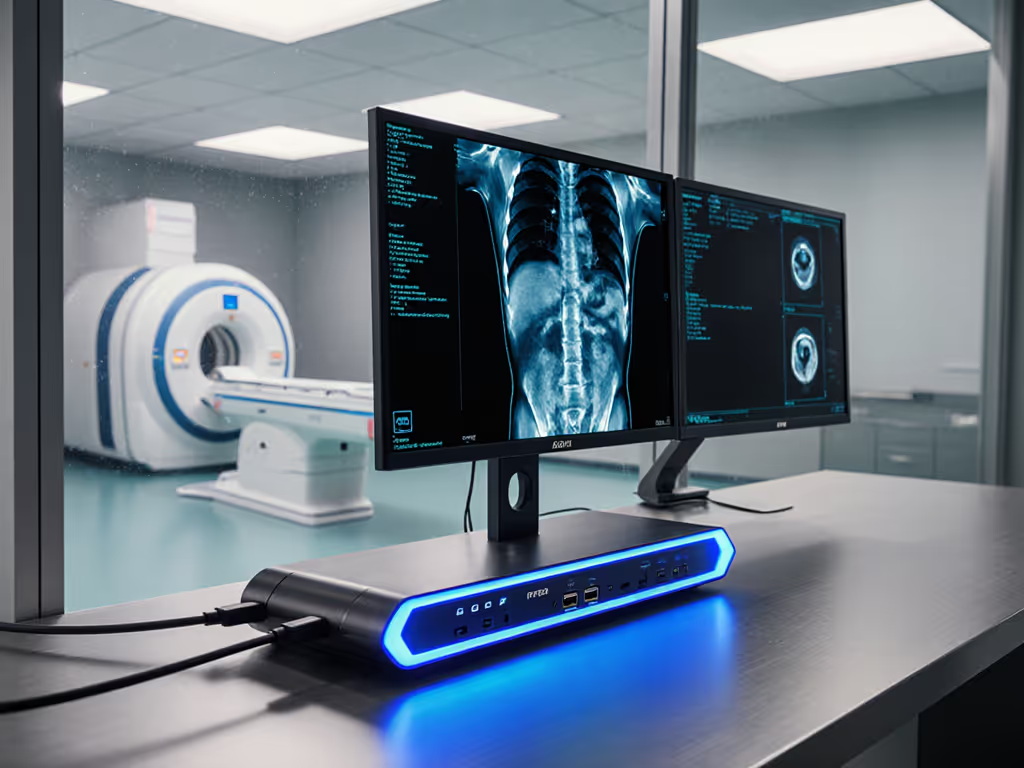
When your radiology or surgical planning team plugs into a workstation dock, three things cascade: the display wakes to full color gamut, the system draws sustained power without throttle, and 3D reconstruction data streams without stall. That cascade is what separates tested clinical environments from spreadsheet promises. This comparison of medical imaging docking stations and 3D medical visualization workstation docks translates vendor claims into the bandwidth math, power budgets, and color metrics that actually determine whether a $2M+ imaging archive renders reliably at your desk.
Why Docking Matters More in Medical Imaging Than General IT
In typical office settings, a 1920×1200 desk setup tolerates some color drift or occasional display enumeration delays. In radiology, a 3-minute warm-up to proper DICOM color space on a dual 4K diagnostic monitor can mean restarting a surgical plan or flagging an artifact as genuine pathology. Power delivery shortfalls cause GPU thermal throttle mid-reconstruction, leaving your 3D model at half resolution while the workstation stays visibly hot.
Unlike consumer docking, dicom-certified docking solutions carry implicit obligations: sustained pixel-clock delivery at calibrated color accuracy, power headroom for sustained workload draw, and firmware stability across OS patch cycles. For a healthcare-specific checklist (sanitization, HIPAA, clinic durability), see our HIPAA-compliant docking guide. Your IT procurement team inherits not just a connector, but a compliance touchpoint.
FAQ: Core Specifications & Comparisons
What Defines "DICOM-Compliant" in a Docking Station?
DICOM compliance does not live in the dock itself (it lives in the display chain). A dock earns credibility through:
- Certified display output: DP 1.4 HBR3 (32 Gbps) or TB4 (40 Gbps) link with zero DSC overhead, delivering 4K @ 60 Hz at 10-bit color without compression artifacts.
- Color management passthrough: USB and Thunderbolt docks must not degrade color LUT or ICC profile delivery from GPU to monitor.
- Power stability: sustained delivery of 90-130W without voltage sag that corrupts GPU state or triggers CPU downclocking.
- Firmware immutability: no driver auto-updates that reset calibration or break existing monitor pairs.
A dock itself cannot be "DICOM-certified" (only the end-to-end path from GPU through dock to calibrated display). However, docks from vendors (Intel Thunderbolt, Belkin, Lenovo ThinkDock, Dell WD19, HP Elite Dock G3) with explicit medical imaging validation are your best bet.
How Critical Is Color Gamut in Medical Workstations?
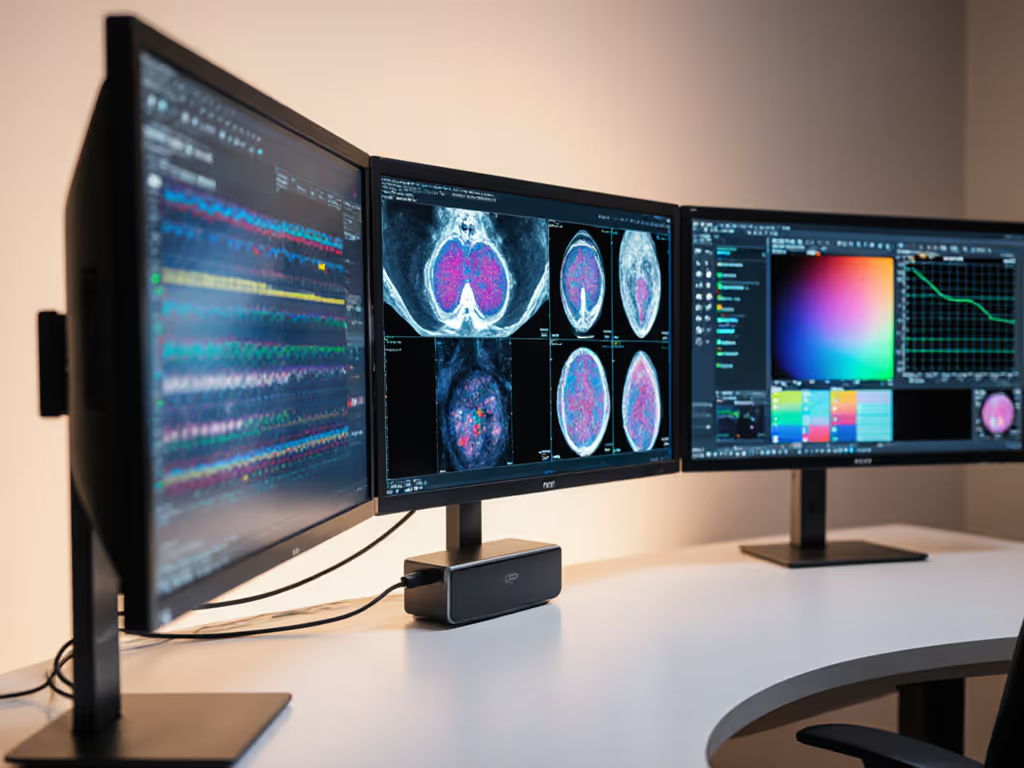
Very. Radiology requires at minimum an sRGB baseline (100% sRGB, Delta E < 2.0), but many sites standardize on Adobe RGB (1.3 or wider) for surgical planning overlays and 3D volumetric rendering. The dock plays a supporting role: it must preserve the full bandwidth needed to transmit 10-bit or 12-bit per-channel color data from GPU to display without loss.
| Specification | Impact on Imaging | Non-Compliance Risk |
|---|---|---|
| 8-bit color (HDMI 1.4 via dock) | Banding in subtle gray gradients on chest X-rays | Missed subtle pneumothorax; false artifact flags |
| 10-bit via DP 1.4 (proper dock) | Smooth tone curves in 3D organ rendering | Proper surgical target delineation |
| No ICC profile preservation (DisplayLink docks) | Color space shifts between sessions | Recalibration overhead; clinician distrust |
I've walked the line between theoretical spec and clinic reality. During a multi-site radiology rollout, triple 4K at 60 Hz looked perfect on paper, until I field-profiled actual DP 1.4 bandwidth on two consumer USB-C docks. The link training negotiated 8-bit, not 10-bit. Reconstruction color flickered under load. We standardized on a Thunderbolt 4 dock with dual DP 1.4 and verified firmware, paired with certified 0.8 m cables. Support tickets on display issues: zero after that.
What Power Budget Should a Medical Imaging Dock Guarantee?
Medical imaging workstations are GPU-intensive. A mobile workstation running NVIDIA RTX 5000 Ada or AMD FirePro W7900 under full 3D load can draw 100-140W sustained.
- 65-90W docks (USB-C Alt Mode): adequate for light knowledge work; insufficient for sustained GPU render loads. Workstation will throttle or drain battery under real reconstruction tasks.
- 100-130W Thunderbolt 4 docks: sufficient for mid-to-high-end mobile workstations. Leaves headroom for full GPU utilization without thermal shutdown.
- Industrial power docks (130-240W): required for high-end dual-GPU desktops or deskside cluster setups.
Power delivery testing is empirical. A 90W dock spec doesn't guarantee 90W sustained; cable gauge, USB PD negotiation firmware, and thermal throttle in the dock power supply itself all degrade real-world output. Demand vendor datasheets showing measured sustained power under load, not just peak ratings.
DP 1.4 vs. Thunderbolt 4: Which Should Your Fleet Standardize On?
Both support full-resolution 3D workflows, but they differ in reliability and future-proofing:
DP 1.4 (via TB4 or USB-C Alt Mode):
- 32 Gbps HBR3, no DSC: dual 4K @ 60 Hz (10-bit) + USB 3.1 Gen 2 on same cable.
- Broad cross-OEM support (Dell, Lenovo, HP, Apple M-series via adapters).
- Mature driver ecosystem; fewer surprise breakages after OS updates.
- Limitation: USB-C Alt Mode negotiation is fragile on some older platforms; multifunction docks (dock + power + USB hub) sometimes degrade DP link to 5.4 Gbps (single 4K only).
Thunderbolt 4:
- 40 Gbps native, dual DP 1.4 concurrent support, peak 100W power (certified).
- Mandatory e-mark validation and backward compatibility testing; lower firmware fragility.
- Superior for dual-GPU desktops or high-speed Thunderbolt storage (RAID arrays for imaging archives).
- Limitation: primarily Intel/Apple native; AMD and ARM platforms require passthrough bridges (adds latency and driver risk).
Recommendation for mixed fleets: Standardize on Thunderbolt 4 docking if your environment has ≥30% Apple (M1/M2) or Intel mobile workstations. For pure Windows sites with mid-range budgets, a high-tier USB-C Alt Mode dock (Belkin Pro, Lenovo ThinkDock Pro) tested on your specific GPU/monitor pairing is acceptable, but reserve TB4 for high-end imaging workstations.
What About 3D Surgical Planning and Multi-Monitor Setups?
Surgical planning tools (Brainlab, Stryker, GE HealthyOne) often demand triple or quad 4K @ 60 Hz with synchronized refresh. This is where docking constraints become critical:
Single-dock multi-display limits:
- USB-C Alt Mode: one 4K @ 60 Hz (DSC or dual-monitor DSC at 30 Hz); MST (Multi-Stream Transport) support is rare and driver-fragile.
- Thunderbolt 4: true dual DP 1.4 native, supporting dual 4K @ 60 Hz (10-bit) + USB concurrent. Triple displays require daisy-chaining displays or a secondary dock (adds complexity, breaks surgical suite workflow). If you must exceed dual 4K reliably, review our multi-dock setup guide for validated chaining limits and troubleshooting.
Tested pairings for surgical: Thunderbolt 4 dock + dual calibrated 4K monitors + single high-speed Thunderbolt storage for archive ingest. Avoid daisy-chain DP displays in clinical settings; the kernel driver complexity and firmware breakage risk are unacceptable for sterile-field planning.
Pixels, power, ports, in that order. If your surgical suite can't render 3D models at the promised resolution for 8 hours without flicker or recalibration, nothing else matters.
OS Compatibility: Windows, macOS, and Linux Imaging Workstations
| OS | Dock Challenge | Workaround | Impact on Medical Imaging |
|---|---|---|---|
| Windows 10/11 + NVIDIA/AMD | DisplayLink drivers break after major updates; USB Generic Host Controller issues. | Vendor BIOS/firmware updates; avoid older chipsets. | Desk turnover causes display enumeration failures. |
| macOS M1/M2 + Thunderbolt | Single external display limit (M1 Gen 1); requires TB4 or specific USB-C dock firmware to bypass. | Upgrade to M2 or use TB4 dock with explicit dual-display UEFI override. | Surgery planning blocked on MacBook M1; forced macOS update cadence. |
| Linux (CentOS/Ubuntu) + RTX workstations | Nouveau driver or older NVIDIA driver versions lack MST support; nouveau + DP 1.4 enumeration is flaky. | Proprietary NVIDIA driver + kernel >= 5.10; test on your exact distro. | Archive browsing or 3D preview fails silently. |
Medical IT must bake OS patch testing into dock validation. A dock that works flawlessly on Windows 21H2 may enumerate displays incorrectly after May 2026 cumulative update. Demand firmware release notes and version-pinning guidelines from your dock vendor. For maintenance steps and known-fix procedures, use our dock firmware update guide.
Comparing Total Cost of Ownership: Docks, Cables, Monitors, and Lifecycle Risk
Scenario: 50 radiology workstations, 5-year replacement cycle
| Item | Budget Option (USB-C) | Premium (TB4) | Why It Matters |
|---|---|---|---|
| Dock (50 units) | $60/unit = $3,000 | $150/unit = $7,500 | TB4 has lower RMA/failure rate in medical settings. |
| Cables (certified, 0.8m, 2 per dock) | $8/unit = $800 | $20/unit = $2,000 | Cheap cables fail under load; medical imaging can't tolerate mid-scan brownouts. |
| Support/Firmware updates (5 years) | $2,000 | $500 | TB4 vendors (Intel) publish long-term driver support; USB-C requires per-OEM updates. |
| Display issues (estimated tickets) | 15-20 | 2-5 | USB-C Alt Mode negotiation failures; TB4 near-zero. |
| Replacement docks (5-year attrition) | $600 | $300 | TB4 has longer lifecycle; model continuity. |
| Total 5-year cost | $6,400-7,000 | $10,300-11,000 | TB4 absorbs initial spend via lower long-term support and downtime. |
Hidden cost of unreliability: Each unplanned display recalibration on a radiology workstation costs ~30 min clinician time + risk of read delay. At $250/hr clinical cost, one display issue per workstation per month = $1,500/year per site in downtime alone. Model your 5-year support and downtime exposure with our dock TCO calculator.
Decision Framework for Medical Imaging IT Procurement
Tier 1: High-confidence surgical/planning suites (>$1M imaging system investment)
- Mandate: Thunderbolt 4 dock, dual DP 1.4 certified, 100W+ sustained power.
- Pair with: calibrated dual 4K displays, sub-1m certified cables, vendor SLA on firmware updates.
- Lifecycle: 5-year support commitment, explicit replacement SKU roadmap.
Tier 2: General radiology or multi-modality reading rooms
- Accept: high-tier USB-C Alt Mode dock (tested on GPU + OS combo) or TB4 if budget allows.
- Non-negotiable: sustained 4K @ 60 Hz (10-bit), ≥90W power, no DSC at your resolution target.
- Test before fleet rollout: 2-week pilot on 5 workstations, stress-test with live archive data.
Tier 3: Clinic or small-footprint sites (hybrid office + imaging)
- Acceptable: USB-C Alt Mode dock if single 4K @ 60 Hz is the imaging display target.
- Risk: scaling beyond 10 workstations exposes firmware fragility; plan for staged refresh.
Further Exploration
Your next step is empirical validation. Gather:
- GPU + OS inventory: exact mobile workstation models, NVIDIA/AMD driver versions, Windows/macOS build numbers across your fleet.
- Display target matrix: confirm dual 4K @ 60 Hz (10-bit) vs. single 5K vs. triple 4K per role.
- Vendor datasheets: demand measured sustained power and DP link training negotiation logs from the dock vendor under your specific load.
- Pilot test protocol: 2-week trial of top-tier dock + cable + monitor on 5 representative workstations, including OS patch cycles and archive render stress.
- Support SLA requirements: clarify firmware release cadence, driver support window, and RMA/replacement guarantee with your vendor.
The vendors who provide all five inputs transparently are your standardization candidates. Those who hide behind marketing specs or require "system specific testing" are not ready for medical-grade deployment.
If pixels stutter, we chase the bottleneck until silence. That's not just engineering discipline, it's clinical accountability.
Related Articles