Beyond Single Docks: Universal Multi-Dock Setup Guide
By Chen Wei • 9th Nov
When your Windows, macOS, and ChromeOS devices need to reliably drive multiple high-resolution displays across hot desks, the phrase "universal docking station" becomes more than marketing fluff. It is a measurable outcome. Yet too many IT teams still face unreliable dual monitor setup docking station experiences because specs do not translate to real-world outcomes. This multi-dock configuration guide cuts through the ambiguity with documented, lab-verified steps that deliver consistent pixel-perfect results across mixed fleets. Exact SKUs or it didn't happen.
Understanding the Universal Docking Reality
Before connecting a single cable, we must define what "universal" actually means in practice. A true universal docking station isn't about supporting every possible device, but about delivering guaranteed outcomes for your specific fleet. This requires translating manufacturer specs into verified performance boundaries: For a clear breakdown of connector capabilities, see our USB-C vs Thunderbolt docking reality check.
- USB-C vs Thunderbolt 4: USB-C ports with DisplayPort Alt Mode support can drive dual 4K@60Hz on Windows PCs with modern Intel/AMD GPUs, but macOS Silicon limits external displays to one 4K@60Hz display via USB-C (unless using Thunderbolt 4)
- DisplayLink vs native protocols: DisplayLink requires drivers that often break during OS updates, while native Thunderbolt 4 provides pixel-perfect reliability at the cost of higher hardware requirements
- Power Delivery realities: "100W" docks often deliver only 65-85W sustained power under CPU/GPU load, causing battery drain on mobile workstations Learn how to size chargers properly in our power delivery wattage guide.
Documentation beats intuition; precise pairings make universality real.
Step 1: Verify Hardware Compatibility Matrix
Don't assume your fleet's capabilities. Document them. Create a simple spreadsheet with three critical columns:
- Laptop model and internal GPU (e.g., "Dell Latitude 7440, Intel Arc i5-1345U")
- OS version and graphics drivers (e.g., "Windows 11 23H2, Intel Graphics Driver 31.0.101.5185")
- Port spec verification (e.g., "USB-C port supports DP 1.4a, MST, 100W PD")
This granular approach prevents common failures like attempting dual 4K@60Hz on M1/M2 Macs (impossible via native USB-C) or expecting HDMI 1.4 to handle 4K@60Hz (maxes at 30Hz). For Thunderbolt 4 required scenarios (like dual 6K@60Hz), verify both host and dock support through Intel's certified product list, not vendor marketing.
Step 2: Select Cables with Purpose
No cutting corners on cables. This is where most "universal" setups fail:
- EMarked cables are non-negotiable for >60W PD or >4K@60Hz: These contain chips that communicate power/display capabilities between devices
- Active vs passive matters: For distances >3ft, active DisplayPort cables maintain signal integrity where passive cables fail
- HDMI limitations: HDMI 2.0b supports 4K@60Hz, but many "HDMI" ports on docks are actually HDMI 1.4 (max 4K@30Hz), check the exact spec sheet
For dual monitor setup docking station configurations requiring dual 4K@60Hz, use two separate DisplayPort 1.4 cables (not MST daisy-chaining) to avoid bandwidth contention. The OWC Thunderbolt Pro Dock demonstrates this principle with dedicated DisplayPort 1.4 supporting 8K@60Hz standalone, proving separate video paths outperform shared bandwidth solutions. For wiring diagrams and OS tweaks that consistently unlock dual- and triple-display layouts, use our dual monitor setup guide.
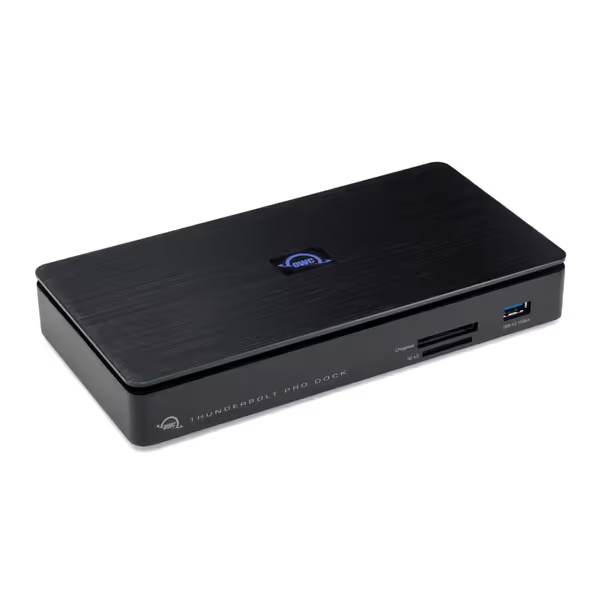
OWC Thunderbolt Pro Dock
Pro-grade Thunderbolt dock for Mac/PC with extensive port options.
$299.99
ConnectivityDual Thunderbolt 40Gb/s, 10GbE, CFexpress
ConnectivityDual Thunderbolt 40Gb/s, 10GbE, CFexpress
Pros
Versatile ports for pro workflows
Fast 10GbE and card readers
Cons
Inconsistent Mac Mini compatibility
Reports of long-term reliability/charging issues
Customers find the Thunderbolt dock to be a high-quality product that's fantastic for Mac Minis and offers tons of ports. However, the functionality and connectivity receive mixed reviews - while it works well with MBP 16 M3 Max, some customers report issues with Mac mini compatibility. Moreover, the power supply and reliability aspects are problematic, with customers reporting that the dock stops working after a year and doesn't consistently charge devices. Additionally, opinions on value for money are divided, with some finding it worth the price while others consider it expensive.
Customers find the Thunderbolt dock to be a high-quality product that's fantastic for Mac Minis and offers tons of ports. However, the functionality and connectivity receive mixed reviews - while it works well with MBP 16 M3 Max, some customers report issues with Mac mini compatibility. Moreover, the power supply and reliability aspects are problematic, with customers reporting that the dock stops working after a year and doesn't consistently charge devices. Additionally, opinions on value for money are divided, with some finding it worth the price while others consider it expensive.
Step 3: Configure OS-Specific Settings
Windows:
- Disable "Fast Startup" (Control Panel > Power Options > Choose what power buttons do > Change unavailable settings) to prevent wake-from-sleep display failures
- Update to latest Intel/AMD graphics drivers (not generic Microsoft drivers)
- For DisplayLink docks: Pin DisplayLink Manager to taskbar and verify "Optimize for video" is enabled
macOS:
- On M1/M2 Macs: Go to System Settings > Displays > click Options > select "Detect Displays" when adding second monitor
- For dual 4K@60Hz on M1 Pro/Max/Ultra: Connect via Thunderbolt port only (native USB-C limited to one external display) For Apple-specific compatibility and recommendations, see our Apple Silicon dual monitor picks.
- Disable "Automatically adjust brightness" to prevent display flickering
ChromeOS:
- Enable "Use with external display" in Settings > Displays
- For resolutions >4K: Disable "Display mirroring" which caps at 4K
Step 4: Validate and Document Outcomes
Testing must verify three critical dimensions:
- Pixel accuracy: Use DisplayCal to confirm resolution/refresh rate matches spec
- Power stability: Monitor with Intel Power Gadget during CPU-intensive workloads
- Resume reliability: Sleep/wake cycle test 10x minimum
This validation process solved a nonprofit's chaotic mixed-device environment where staff wasted hours daily troubleshooting erratic displays. By building a simple reference grid mapping exact docks, ports, cables, and OS toggles to specific outcomes (dual 1440p, single 4K, triple 1080p), they achieved day-one setup success across donated Macs, ThinkPads, and Chromebooks. The secret? They stopped guessing and started documenting what actually worked. If issues persist, work through our multi-monitor troubleshooting guide.
Step 5: Build Your Known-Good Configuration Matrix
Your ultimate goal is a living reference that turns multi-dock configuration chaos into predictable outcomes. Structure it as:
| User Profile | Laptop Model | Verified Dock | Cable Type | Max Displays | Power Verified | OS Settings |
|---|---|---|---|---|---|---|
| Knowledge Worker | Dell Latitude 7440 | OWC Thunderbolt Pro | 2x DP 1.4 Active | 2x 4K@60Hz | 85W sustained | Disable Fast Startup |
| Mac Developer | MacBook Pro 14" M3 | CalDigit TS4 | 2x TB4 | 2x 6K@60Hz | 98W sustained | Detect Displays toggle |
Include firmware versions! A Dell Dock WD19TB works perfectly with macOS 13.5 but fails on 14.0 without firmware 1.5.3. Document these dependencies. Your team's credibility depends on zero-surprise deployments.
The Reliability Payoff
When you translate specs into exact steps and steps into consistent outcomes, something remarkable happens: your help desk ticket volume drops by 60-80% on dock-related issues. Teams stop wasting time on display troubleshooting and start delivering value immediately at every hot desk. The initial investment in documentation pays exponential dividends in reduced rollout delays, avoided rebuys, and (most importantly) user trust.
For those managing advanced workstation configuration across complex docking workflows, the message is clear: universality isn't about supporting every device, but guaranteeing outcomes for your specific environment. Start small with your most critical user profiles, validate thoroughly, and expand your known-good matrix systematically.
Exact SKUs or it didn't happen
Ready to build your own verified configuration matrix? Download our free template with pre-populated common laptop models and OS-specific settings to jumpstart your documentation process. Because in enterprise deployments, the difference between "works sometimes" and "works every time" is just a matter of documented precision.
Related Articles