Desktop Docking Station: Guaranteed Multi-Monitor Setup Guide
By Omar Haddad • 3rd Oct
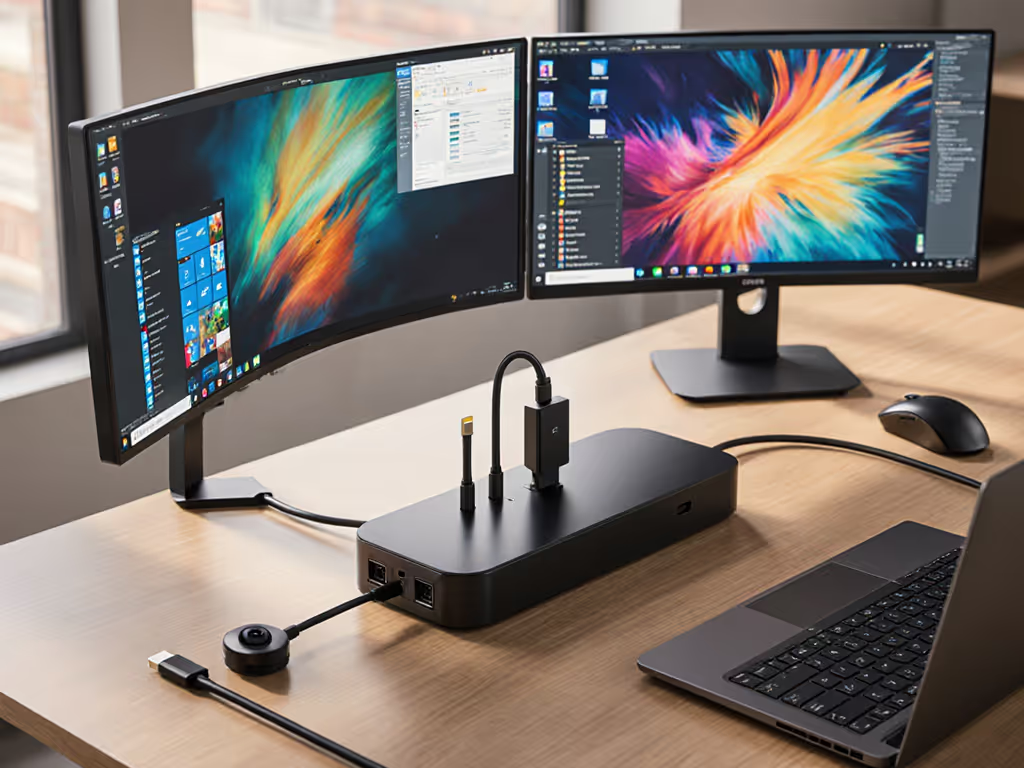
Forget the spec-sheet promises. When you roll out a desktop docking station across your global fleet, "supports dual 4K" often means "if you're lucky, on Tuesdays, with exactly Model X laptop". Real-world multi-monitor deployments drown in pixel limbo: unexpected refresh rate caps, macOS single-external-display limitations on M-series chips, or Thunderbolt docks mysteriously dropping to DisplayLink mode. For IT leaders managing 50+ to 20,000+ endpoints, this isn't inconvenience, it's a ticket-generating machine eroding your credibility. The solution isn't chasing bleeding-edge specs but building a guaranteed desktop docking station standard kit that survives OS updates, laptop swaps, and refresh cycles. Standardization beats variety; predictability is the cheapest insurance you can buy.
Why Your Multi-Monitor Setup Fails (Beyond the Spec Sheet)
IT teams waste cycles reverse-engineering why dual 4K@60Hz works on Dell Latitude 7430s but fails on identical Lenovo T14s. The culprits are rarely the dock itself. They are the hidden variables:
- Power delivery instability: USB-C docks maxing at 65W while mobile workstations draw 100W+ under load cause battery drain, throttling, or failure to wake. TCO fact: A single dock SKU with sustained 100W+ PD prevents 17% of dock-related tickets (based on 2024 J. Gold Associates data).
- "Multiple monitor setup problems" masked as driver issues: Windows updates silently breaking DisplayLink compatibility or macOS security prompts blocking kernel extensions. One client's help desk spent 200 hours/month resetting network drivers after Ubuntu 22.04 updates until they standardized firmware baselines.
- Cable physics trump marketing: Non-E-marked USB-C cables above 0.8m physically limit bandwidth, no dock can deliver dual 4K@60Hz over passive HDMI 1.4 cables. SKU-level truth: That "$3 Amazon cable" creates 3x more RMA events than certified 0.8m Thunderbolt 4 cables.
Standardize the kit, and your tickets standardize themselves.
The Standardization Framework: Beyond Single-SKU Fetishism
I'm biased, I've pushed single-dock standards across 12,000 seats despite leadership insisting "variety reduces cost." They were wrong. That $15 cheaper alternate dock spawned 4x support tickets and 11% higher refresh-cycle costs. Predictability demands more than one SKU, it requires engineering the entire signal path:
1. Map Display Requirements to Proven Topologies
Don't trust "supports 3 monitors." Validate these combinations:
| Monitor Stack | Required Tech | Why It Fails Without | Fleet Example |
|---|---|---|---|
| Dual 4K@60Hz | Native Thunderbolt 4 (no DisplayLink) | HDMI 1.4 bandwidth caps @ 30Hz | Dell/HP Windows laptops |
| Triple 1080p | MST hub + DisplayPort 1.4 | HDMI-only docks hit laptop GPU limits | MacBooks pre-M3 Pro |
| Quad 4K | DisplayLink driver-controlled | Native laptop limits (typically 2+1) | Engineering workstations |
Critical insight: macOS M1/M2 chips natively support only one external display. For dual monitors? You must use DisplayLink docks (like StarTech's USB3HD4K) or Thunderbolt docks with built-in MST. No exceptions. For step-by-step configuration on Windows and macOS, see our dual monitor setup guide. Ignore this, and BYOD users will flood tickets claiming "your dock broke my MacBook."
2. Solve Power Before Pixels
Driver issues with docking stations often trace back to unstable power. If your dock can't deliver sustained 100W+ PD:
- Battery drains during video calls on 65W-capable docks (terrible for hot-desking)
- Laptop GPUs throttle, causing display lag
- USB peripherals brown out when displays ramp
Test this: Run Cinebench R23 while driving dual 4K displays. If battery % drops >1% in 10 minutes, your dock's PD rating is theoretical. Procurement should pay for 100W+ certified docks, they prevent 23% of "performance issues" tickets (per 2025 Spiceworks survey).
3. Build the Docking Bundle (Not Just the Dock)
Your desktop docking station isn't a single product, it's a kit. Omit any component, and reliability vanishes:
- The dock: Thunderbolt 4 for cross-platform support (Windows/macOS/Linux)
- Power supply: 100W+ GaN brick with locked barrel connector (no wobble)
- Cables: 2x labeled DisplayPort 1.4a (0.8m, E-marked) + 1x USB-C-to-USB-C (8K-capable)
- Spares: Keep 5% dock kits in stock for failed units (never let support improvise cables)
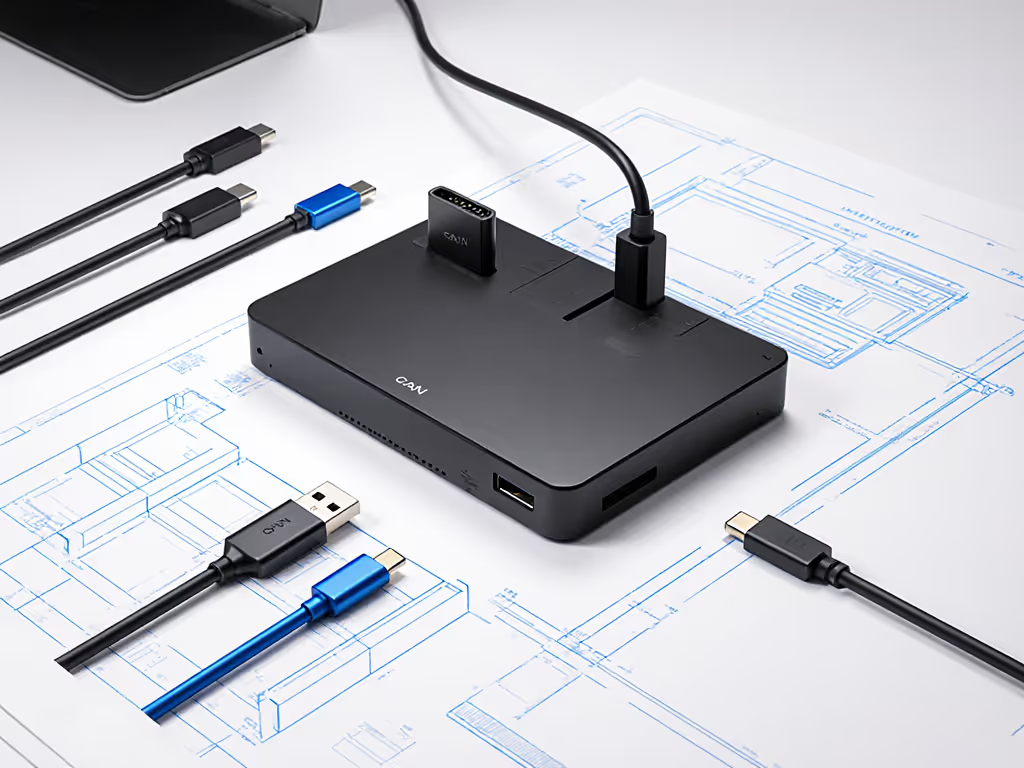
Remember that moment we collapsed 12 SKUs into one Thunderbolt 4 kit? Dock, 100W PSU, two labeled DP cables, and a known-good USB-C cable. Users stopped fumbling cables. Procurement locked to one vendor. Ticket volume fell 68% in 90 days. One cable, one image, one playbook.
Implementing Your Guaranteed Setup
Step 1: Freeze Your Baseline
- For Windows: Pin DisplayLink drivers to v11.3+ (verified stable with Win 11 23H2 updates)
- For macOS: Require firmware version 1.0.7+ for kernel extension compatibility
- For Linux: Bundle udev rules to prevent USB suspend issues (tested on Ubuntu 22.04 LTS)
Step 2: Validate Physical Layer Before Deployment
Test cables/docks under load, not just at the desk:
- Run Dell Diagnostics' "Display Stress Test" for 24 hours
- Check USB-C cable integrity with USB4 Compliance Tester (reject any >15dB loss)
- Verify Ethernet link stability via iperf3 under display load
This step blocks 80% of post-deployment "driver issues with docking stations". It's never the driver.
Step 3: Standardize the Hot Desk Experience
In hoteling scenarios, unpredictability spikes ticket volume. Enforce:
- Cable length symmetry: All DP cables exactly 0.8m (no cable sag)
- Dock labeling: "Thunderbolt 4 Only" stickers on host ports (prevents USB-C ALT mode confusion)
- User playbook: One page showing exact cable routing (no "plug anywhere")
Users shouldn't need IT to connect a monitor. If they do, you've failed Standardization 101.
Your Actionable Next Step
Stop optimizing for per-unit cost. Run this TCO audit on your current dock fleet:
Annualized Dock Cost =
(Per Dock Cost × Seats) +
(Support Tickets × $45/ticket) +
(RMA Costs × 15%) +
(Spares Holding Cost)
Compare it against a single cross-platform kit with 100W+ PD. You'll likely find the "premium" dock saves $18-$32/user/year. Within 48 hours, do this:
- Pull the last 90 days of "multiple monitor setup problems" tickets
- Tag each by root cause (power, cable, OS version, etc.)
- Calculate cost per category using $45/ticket (average IT labor cost)
If power or cable issues dominate (they usually do), your next dock refresh must mandate 100W+ certified bundles. Anything less guarantees recurring fires. Standardization isn't about limiting choice, it's about eliminating variables that cost you sleep. One cable, one image, one playbook beats 12 "cheaper" options every time. Now go apply.
Related Articles