Multilingual AI Docking: From Specs to Setups
By Chen Wei • 2nd May
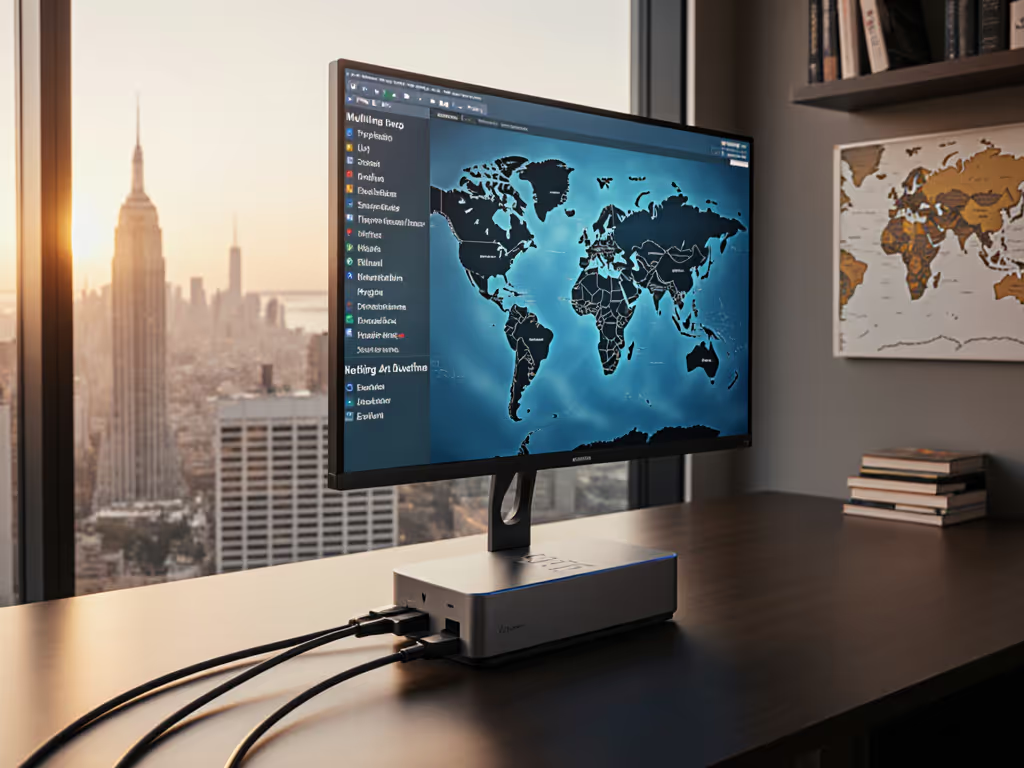
When multilingual AI teams (translators, voice-to-text operators, language processing engineers, and localization specialists) share hot-desk spaces or remote setups, a single plug-and-play cable becomes the difference between "ready in 30 seconds" and "I need IT." This guide translates multilingual AI docking solutions into exact steps, cables, monitors, and OS settings, so your workstations deliver consistent real-time translation performance and reliable display geometry every single time.
Why Docking Specs Matter for Multilingual Workflows
Multilingual AI processing is computationally hungry. A translator with two or three language-pair monitors (for source, target, and reference content), audio input devices, and local neural models demands more than casual desk power. The dock is not just a convenience, it is the hard boundary between "system throttles under load" and "sustained 100W+ delivery." Add to that the complexity of mixed-OS fleets (macOS for creative teams, Windows for enterprise, Linux for data engineers), and ambiguous spec sheets become operational liabilities. If you're unsure when to choose USB-C versus Thunderbolt for multilingual workflows, see our USB-C vs Thunderbolt docking explainer.
Translate specs into steps, and steps into consistent outcomes.
Three years ago, I worked with a nonprofit that mixed Macs, ThinkPads, and Chromebooks across hand-me-down 1440p monitors. Specs confused everyone; nobody knew which dock could drive a dual-4K setup or whether the shared cable would charge a mobile workstation. I built a "known-good" grid mapping exact docks, Thunderbolt 4 cables (E-marked, no corners cut), and OS toggles to each outcome. New staff followed the matrix, not guesses. Day-one setups stopped derailing training weeks.
That grid is the template here: exact SKUs or it didn't happen.
Step 1: Define Your Multilingual Workstation Profile
Categorize by Role and Display Demand
Not every translator needs the same docking footprint. Start by defining your user personas:
- Single-screen translators: one 1440p or 1080p monitor; modest power needs (45-65 W). Often hoteling staff who move desks daily.
- Dual-monitor language specialists: two 1440p displays for side-by-side source and target; 65-90 W sustained.
- Ultra-wide or 4K content creators: single 5K/6K or triple 1080p setup; heavy GPU load for rendering; 100-130 W+.
- Real-time transcription operators: single high-refresh (120-144 Hz) monitor for live captions, wired Ethernet, USB audio (external microphone, speakers); 65-90 W.
- Data scientists / voice-to-text engineers: dual 4K@60 + local AI inference; 130W+ essential; Linux and Windows dual-boot flexibility.
For each profile, document the minimum guaranteed outcome. Example: "Dual-screen profile = Thunderbolt 4 dock + two 1440p@60 monitors + 90W sustained + Gigabit Ethernet." No marketing speak. Exact target.
Inventory Your Fleet
List every laptop model, CPU, GPU, and OS version that will connect to docks:
| Laptop Model | CPU | GPU | OS | Max Dock Power | USB-C / TB4 | Notes |
|---|---|---|---|---|---|---|
| MacBook Pro 14" M3 | Apple M3 | Integrated | macOS 14+ | 96W | TB4 | Single ext. display native; dual via dock |
| Dell XPS 15 Plus | Intel i7-13700HX | NVIDIA RTX 4070 | Windows 11 | 100W | USB4 | Draws 130W at peak; dock will throttle |
| Lenovo ThinkPad X1 | Intel i7-1365U | Iris Xe | Windows 11 | 65W | TB4 | Conservative power; ideal for rotation pool |
| Framework 16 | Intel i9-13900HX | NVIDIA RTX 4080 | Linux / Win 11 | 140W | USB4 | Needs 140W dock + active cooling |
This inventory feeds every downstream decision. "Should work" dies here.
Step 2: Select Docks Using a Spec Pairing Matrix
Dock Essentials Checklist
Every dock spec sheet lists ports; few spell out what "works" in your OS mix and display topology. Demand these facts:
- Thunderbolt 4 or USB4 host: Not USB 3.2. TB4 guarantees bandwidth for dual 4K@60 via DisplayPort MST and 100W+ pass-through. USB4 is equivalent; USB-C Alt Mode alone is insufficient for high-res translator workloads.
- Power delivery (PD) rating: Match or exceed your hungriest laptop. XPS 15 + RTX 4070? Minimum 140W dock. Throttling costs performance and credibility. For wattage sizing and safety, use our power delivery guide.
- Port layout: Downstream USB 3, Gigabit Ethernet (mandatory for real-time transcription), 3.5 mm audio, SD card. Diagram each port by function.
- Display output bridging: Does the dock support DisplayPort Multi-Stream Transport (MST)? MST allows daisy-chain or parallel dual-4K@60 from a single TB4 cable. Without it, you're limited to single-4K or dual-1440p unless you use USB-C Alt Mode splitters (complexity spike, not recommended).
- OS driver / firmware baseline: macOS: any Thunderbolt dock works natively; Windows: check for DisplayLink dependency (legacy docks require DisplayLink driver updates after each OS patch, risky for enterprise). Linux: TB4 docks are Linux-friendly; USB 3 hubs vary; always test before fleet rollout.
- Firmware update mechanism: Can it update over USB without docking, or only while connected to a host? Remote/unattended updates reduce desk-by-desk maintenance.
Known-Good Pairing Examples
For a 90-person multilingual content team across APAC and Europe, mixing M1/M3 Macs and Windows 11 XPS units:
Outcome: Dual 1440p@60 + 90W sustained + Ethernet + hot-desk turnaround under 2 minutes.
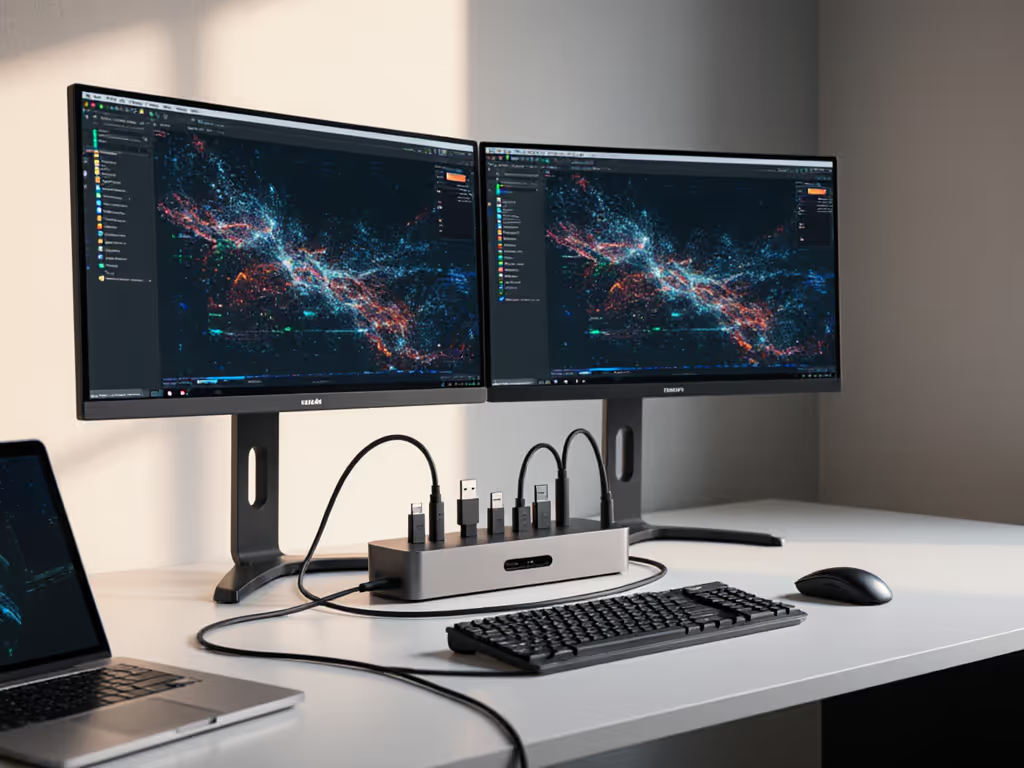
Approved dock: Thunderbolt 4 dock (100W PD, dual USB-C downstream, 2× USB 3, Gigabit Ethernet, TB4 host). Why? Native MST support on TB4 drives two 1440p monitors in parallel. 100W PD handles M3 and most XPS loads without battery drain.
Cable pairing: Thunderbolt 4 cable (40 Gbps, 240W E-marked), 1.2 m length (fits desk-to-monitor run without coiling). Exact SKU matters: passive TB4 cables under $15 are often thin, prone to kinking, and violate E-mark specs for power (buyer's risk).
Monitor picks: Dual 1440p@60 USB-C daisy-chain monitors (enables single TB4 cable to fan out to two displays). Confirm daisy-chain support in spec sheet; not all 1440p USB-C displays support it.
Step 3: Validate Display Topology and Resolution Limits per OS
macOS M1/M2/M3 Quirk: Single External Display Native, Dual via Dock
Apple's M-series limit one external display natively. For Apple Silicon specifics and verified dual-display options, see our Apple dual-monitor dock guide. To drive two external monitors on a Mac (standard for translators), the dock must bridge them. This requires TB4 MST. Confirm this in your dock spec, many generic USB-C hubs will not.
OS toggle for macOS: System Settings > Displays > "Arrange Displays." If you see only one external display listed, the dock isn't enumerating both. Restart the Mac while docked; if still blank, the dock lacks TB4 MST or firmware is outdated.
Windows 11 Multi-Display and DSC (Display Stream Compression)
Windows handles dual 4K@60 over TB4 with DSC (Display Stream Compression) enabled in the dock and monitors. If you're building dual- or triple-monitor workflows on Windows, follow our 4K multi-monitor setup guide. DSC is lossless and invisible to the user, but it's often disabled by default in budget docks.
OS toggle for Windows 11: Device Manager > Universal Serial Bus controllers. Find the Thunderbolt host controller and check "Power Management" tab. Disable "Allow the computer to turn off this device to save power" (sleep-wake black-screen prevention).
In NVIDIA Control Panel (Windows 11 XPS + RTX 4070): right-click desktop > NVIDIA Control Panel > Display > Change resolution. Confirm DSC is enabled if driving dual 4K@60. Most recent drivers enable it automatically; older versions require a checkbox.
Linux: TB4 Native, Check Nouveau vs. NVIDIA Driver
Linux on Framework or Lenovo with NVIDIA GPU: Thunderbolt docks enumerate cleanly, but NVIDIA's proprietary driver may not play well with MST. Test in advance. For distro-specific guidance (kernel, NVIDIA vs Nouveau, DisplayLink tradeoffs), start with our Linux docking guide.
OS toggle for Linux: xrandr -query from terminal lists all detected displays. If second display is not listed, the dock is detected (check lsusb for Thunderbolt host) but not bridging. Reboot and re-seat the TB4 cable.
Step 4: Cable Discipline
Cable selection is not cosmetic. I've seen $4k docking setups fail because someone grabbed a $12 USB-C passive cable off Amazon. Don't gamble here.
Mandates
- Thunderbolt 4 cables only for docking: 40 Gbps bandwidth, supports 240W pass-through. E-marked (certified for power). Cost: $25-50. Non-negotiable.
- Length matters: 1.2-1.5 m for desk-to-dock routes. Longer cables (2+ m) degrade power delivery and introduce latency on older hub chipsets. Shorter cables (0.5 m) limit desk layout flexibility.
- No daisy-chaining beyond two displays: TB4 supports theoretical daisy-chain (up to 6 devices), but for translator workstations, two external monitors + dock = practical limit. Third monitor requires a second TB4 cable or falls back to HDMI/DP.
- Ethernet cable: Hardwired Cat6 to dock (not wireless). Real-time transcription and API latency-sensitive workflows need sub-5 ms jitter. WiFi introduces 10-50 ms variance; unacceptable for voice-to-text sync.
Step 5: Build a Known-Good Kit and Document It
Create a one-page reference card per approved docking profile. Example:
Profile: Translator (Dual 1440p, APAC/EU mix)
- Dock: [Exact brand, model, SKU] (100W, TB4 host, dual USB-C, Ethernet)
- Cable: Thunderbolt 4 [SKU], 1.2 m, E-marked
- Monitor 1: [Model, SKU] 1440p USB-C daisy-chain
- Monitor 2: [Model, SKU] 1440p USB-C daisy-chain
- Power adapter (if dock is underpowered for your fleet): [SKU, wattage]
- macOS toggle: System Settings > Displays > confirm two external displays
- Windows toggle: Device Manager > Thunderbolt host > disable auto-sleep; NVIDIA panel > DSC enabled
- Linux test command:
xrandr -query(should list both monitors) - Setup time SLA: 90 seconds after first plug
- Warranty: [X years]; support contact if black screen on wake
Standardizing this checklist (exact SKUs, cable specs, OS toggles, expected metrics) removes guesswork. Train new hires against the card. Track failure rates by profile. Iterate quarterly.
Conclusion
Multilingual AI docking solutions succeed when you replace marketing with measurable pairings. Translate every spec sheet into an outcome: "This dock + this cable + these monitors = dual 4K@60, 100W sustained, Gigabit Ethernet, under 2-minute setup." Document it. Test it. Repeat it for every hardware profile in your fleet. Your translators will plug in, and it will just work, no tickets, no surprises, no thermal throttle creeping into real-time translation latency.
Exact SKUs or it didn't happen.
Related Articles