GDPR Compliant Docking Stations: Setup Guide
By Lucia Moretti • 23rd Feb
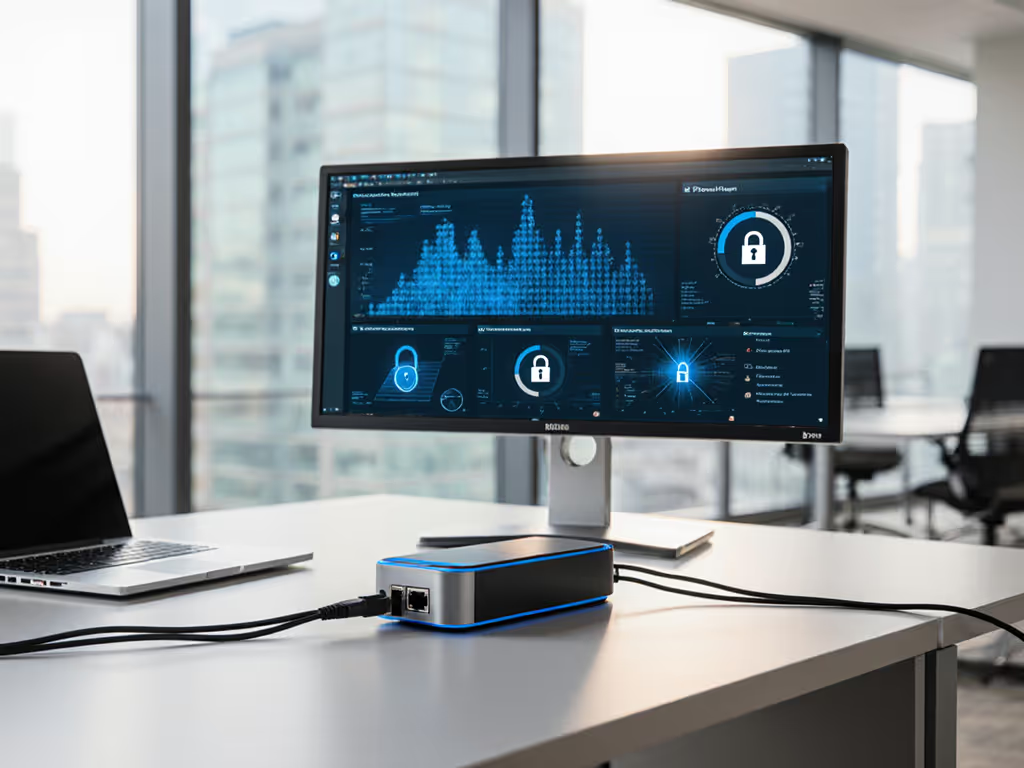
GDPR compliant docking stations and PCI DSS docking requirements are no longer optional considerations for IT teams managing hybrid and hot-desk environments (they're operational foundations). When you standardize dock setup around security, data protection, and clear configuration, you eliminate the friction that turns a simple peripheral connection into a compliance risk, support ticket, or security incident. This guide walks you through the seven essential steps to deploy docks that protect data, streamline onboarding, and keep your infrastructure auditable.
1. Establish Your Compliance Baseline and Audit Requirements
Before any dock leaves the packaging, you need to know what your organization's compliance obligations actually are. GDPR, PCI DSS, FedRAMP, and sector-specific regulations (healthcare, finance, government) each impose different hardware and data-transfer controls. Audit your:
- Data classification rules: Are docks handling personally identifiable information (PII), payment card data, or regulated content?
- Port restrictions: Must USB ports be disabled, encrypted, or monitored?
- Network segregation needs: Do docks need to support isolated VLANs or wired-only connections?
- Firmware and driver traceability: Can you remotely verify dock firmware versions and security patches across your fleet?
Why this matters first: A dock that checks the wrong box leaves you managing exceptions instead of scaling a standard. Small setup details prevent the big support calls (and compliance audits).
2. Select Docks Designed for Managed Environments
Not all docks are created equal when security and auditability are non-negotiable. For vetted hardware options built for managed fleets, see our IT-tested enterprise docking stations. Prioritize docks that offer:
- Hardware encryption on integrated storage or pass-through USB controllers
- MAC address and firmware reporting for network inventory and device management
- Port disable policies enforced at the firmware level (USB, audio, video, network)
- Multi-OS support with vetted drivers for Windows, macOS, and Linux
- Audit-friendly documentation including bill-of-materials, power specs, and tested cable lists
When evaluating vendor claims, ask for independent test reports pairing your exact laptop models, operating systems, and monitor configurations. This is not paranoia (it's the difference between a dock that works and one that creates chaos during a fresh Windows or macOS update).
3. Plan Physical Setup Around Cable Management and Labeling
A compliant dock setup starts with the cables. Unlabeled ports and tangled cables are the leading cause of user confusion, misdirected connections, and security violations (like plugging into unsecured USB hubs). Build your dock standard using this framework:
Cable and Port Labeling
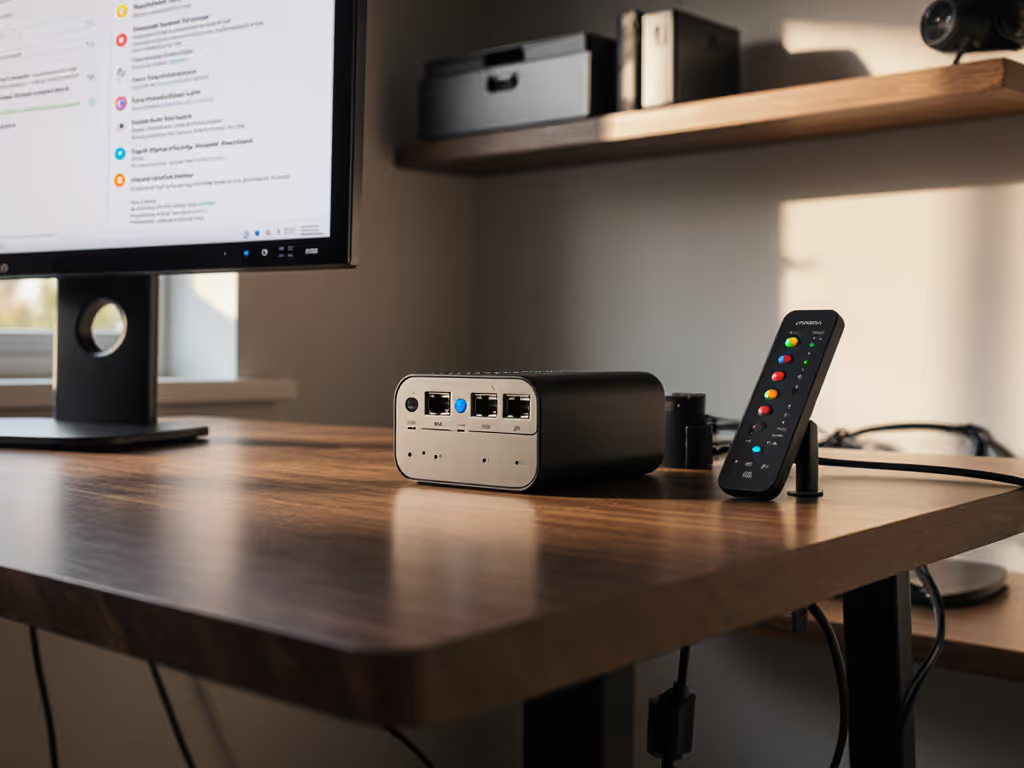
- Label every port on the dock with a color-coded sticker and printed tag (port name, supported protocol, max power/bandwidth)
- Use E-marked, tested cables of specified lengths (test your longest cable run in the environment; don't assume "USB-C 2m" is safe)
- Route power and Thunderbolt/USB-C behind the monitor using cable clips or raceways; keep them out of the user's reach to prevent accidental disconnection or tampering
- Secure high-risk cables (network, power) with velcro or spiral wraps; avoid zip-ties that can be snapped and left loose
- Create a one-page 'Plug Here' reference card for each desk, printed and laminated, showing the dock diagram and which port does what
Dock Positioning
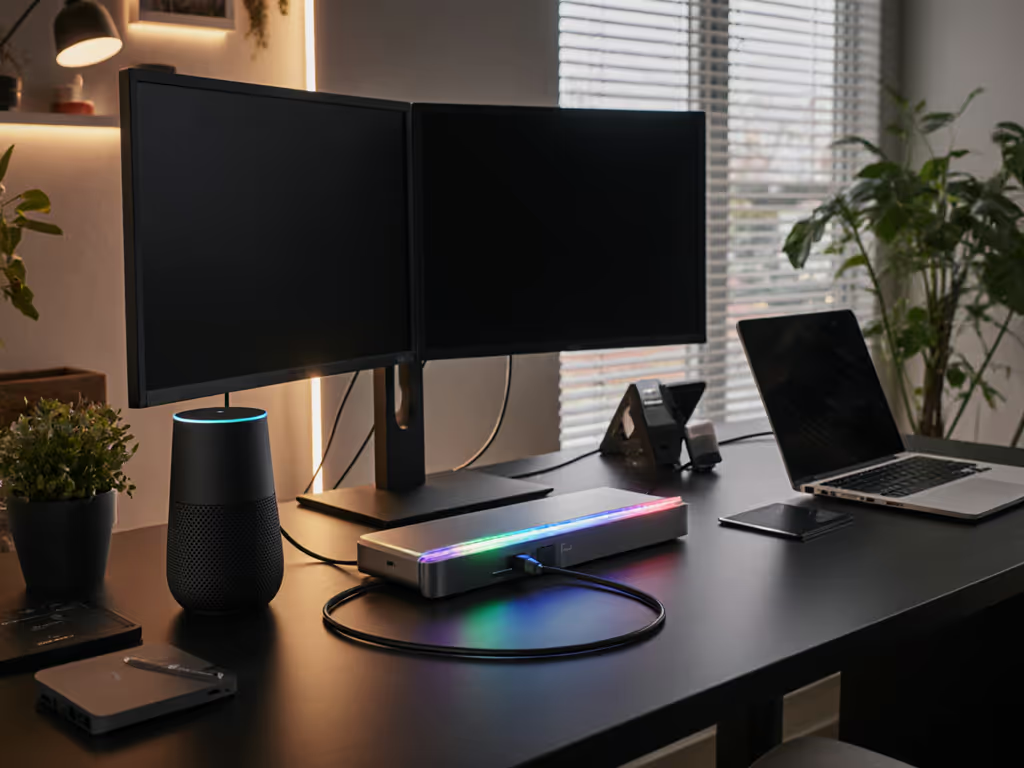
- Mount the dock on a VESA arm or behind the primary monitor (not on the desk surface) to reclaim workspace and reduce accidental bumps
- Position the dock within arm's reach so users can unplug safely and quickly during hot-desk transitions
- Ensure airflow around the dock to prevent thermal throttling or power delivery loss
Label it once; answer it a hundred times, or answer it zero times if the label is clear.
4. Configure Security and Access Controls
Compliance isn't just about what users can plug in (it's about what they cannot). For a deeper checklist of protections, review our docking station security features guide. Configure your dock firmware and endpoint management policies to enforce:
Hardware-Level Controls
- Disable unused ports (audio, storage, select USB) at the firmware level if they're not required for your user cohort
- Lock USB devices to an approved list (keyboards, mice, approved external drives) using device class or MAC address whitelisting
- Enable Kensington lock support for high-security environments and conference rooms
- Set strong admin passwords on the dock itself; document these in your secure configuration management system
Network Configuration
- Use wired Ethernet by default in docking stations; it's more predictable and auditable than WiFi
- Segregate dock networks onto a managed VLAN with MAC filtering if your environment requires air-gapped data handling
- Enable DHCP logging to track which device connected and when; integrate logs with your security information and event management (SIEM) platform if compliance mandates device tracking
5. Install, Test, and Document Drivers and Firmware
A dock is only as secure and functional as its firmware and drivers. Establish a change-control procedure:
Pre-Deployment Testing
- Test on representative laptops (at least three OS versions if you support Windows, macOS, and Linux; multiple chipsets if your fleet includes Intel, AMD, and Apple Silicon)
- Verify power delivery under load (sustained 100W+ if required by your user workstations)
- Test display enumeration and resolution stability for your target monitor configuration (e.g., dual 4K@60Hz or 5K/6K for creatives)
- Confirm Ethernet, audio, and USB peripheral detection after sleep/wake cycles
- Document any driver prerequisites and OS settings (e.g., Thunderbolt authorization on macOS, DisplayPort Alt Mode enablement in UEFI)
Baseline and Updates
- Create a firmware baseline version number; document this in your configuration management database
- Test driver updates in a staging environment before pushing to the fleet; don't assume vendor updates are backward-compatible
- Plan a dock firmware update cycle (e.g., quarterly or after critical OS updates) and script remote updates where possible
- Log all firmware changes for audit compliance
6. Deploy Standardized Kits and Onboarding Materials
A great dock is invisible; clarity at the desk prevents calls. Standardize your deployment by role or space:
Build a Golden Kit
Define an approved bundle for each user persona:
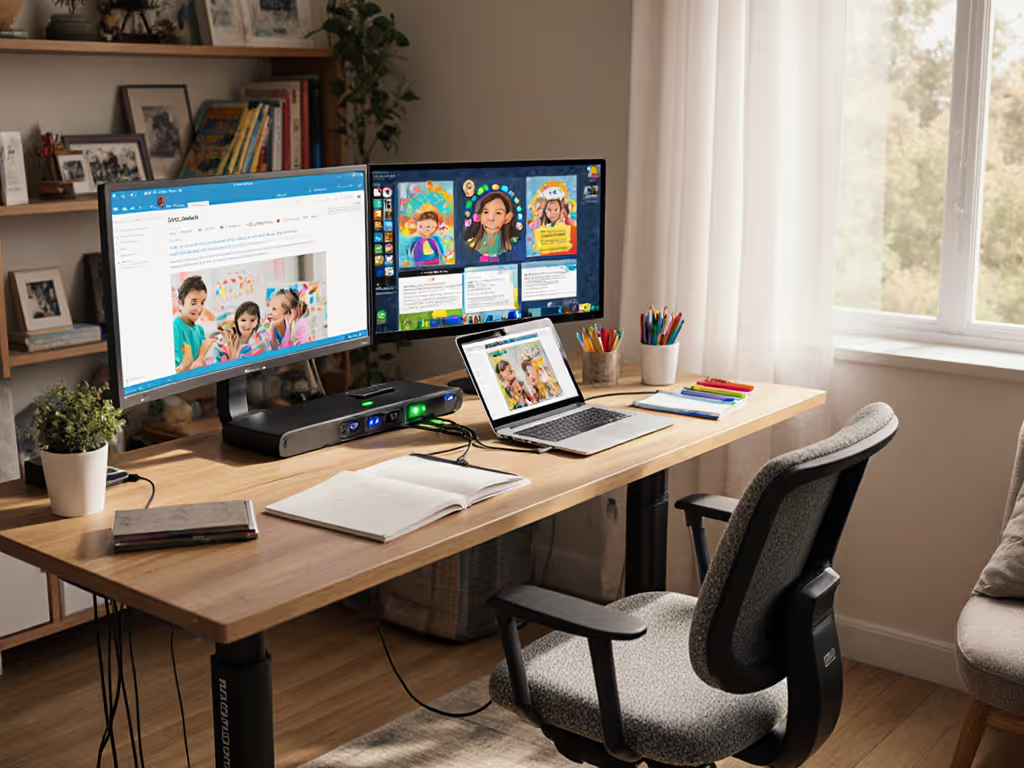
- Knowledge workers: single external monitor, USB keyboard, mouse, Ethernet optional
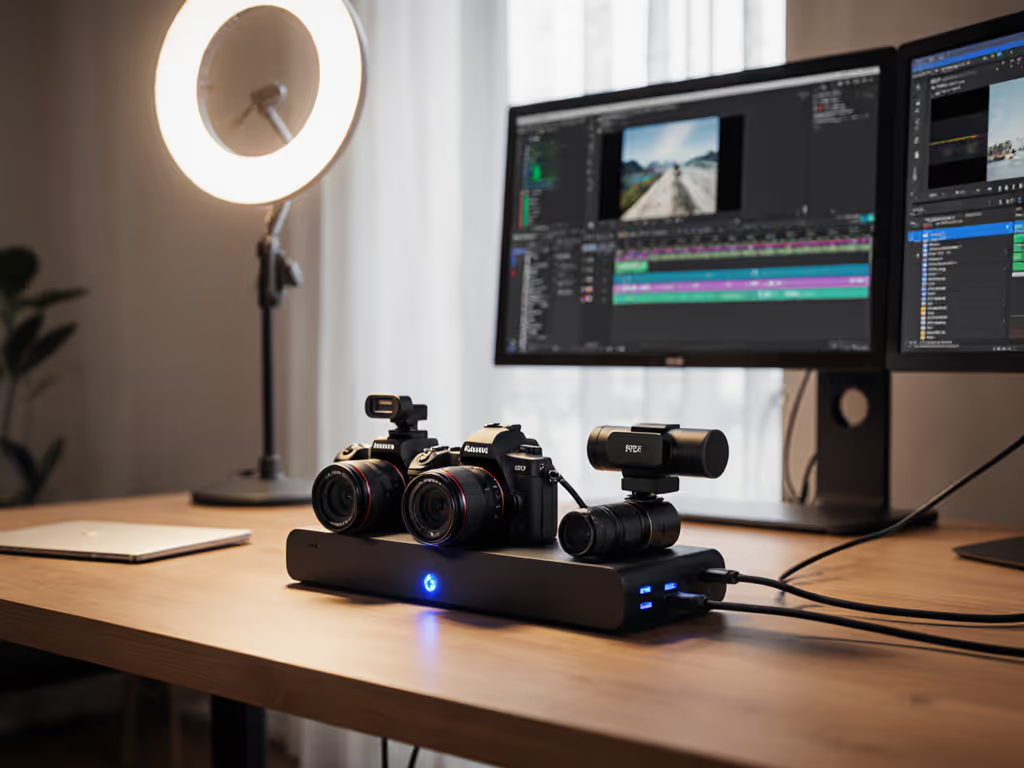
- Creators/traders: dual 4K displays, USB audio interface, external SSD, Ethernet required
- Meeting rooms: fixed dock, dual displays, USB camera and microphone, locked cable routing
Include the dock, all tested cables, wall-mount brackets, and the printed 'Plug Here' card in each kit.
Onboarding Materials
- One-page quick-start guide with step-by-step photos
- Troubleshooting checklist (check power, check Ethernet, restart dock, restart laptop), in that order
- Support contact card with a link to a recorded video showing the correct setup
7. Monitor, Audit, and Iterate
Deployment day isn't the end. Compliance and reliability depend on ongoing visibility:
Metrics and Monitoring
- Track dock-related support tickets by type (display, power, network, security alert)
- Monitor dock firmware versions via your endpoint management tool; alert if a device falls behind the approved baseline If you manage a large fleet, compare remote dock configuration tools to standardize visibility and control.
- Audit USB access logs quarterly to ensure no unauthorized devices connected
- Schedule firmware and driver reviews after each major OS update
Feedback and Iteration
- Interview users after their first week on a new dock setup; ask what confused them and what worked
- Collect failure data from any returns or escalations; patch the standard (cable length, driver version, placement) based on real outcomes
- Plan an annual refresh of test results and documentation as new laptop/OS/monitor combinations enter your fleet
Moving Forward: Your GDPR-Ready Dock Strategy
GDPR compliance and docking reliability are not opposing goals (they're two sides of the same coin). When you standardize dock setup with clear labeling, tested cables, security controls, and auditable firmware, you build a system that your users trust and your auditors can verify.
The payoff is measurable: fewer support tickets, faster onboarding, and the confidence that your hot-desk or BYOD program is both frictionless and secure. Start with one cohort, test rigorously, and scale the proven setup across your fleet. Your workplace will become a place where users plug once and everything just works (and your compliance team will sleep better knowing exactly what's connected, where, and why).
Next Steps: Review your current dock inventory against the compliance checklist above. Schedule a vendor presentation with your procurement and security teams, and plan a 30-day pilot with representative users from each department. Document your outcomes and use them to guide organization-wide standardization.
Related Articles