Accessible Desktop Docking: Screen Reader Guide
By Lucia Moretti • 21st Jan
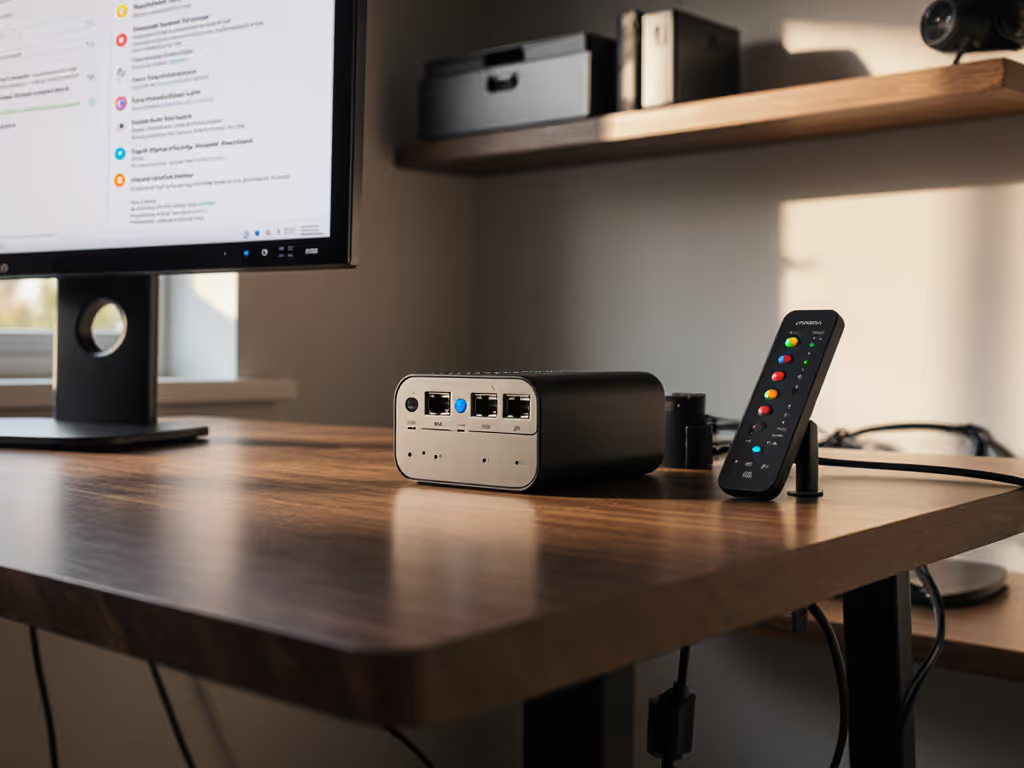
Creating a truly accessible desktop docking setup that works seamlessly for visually impaired users is about more than just plugging in cables; it is about designing workspaces where technology disappears into the background, letting users focus on their work. When docks are thoughtfully implemented, they become invisible tools that empower rather than obstruct. Small setup details prevent the big support calls, especially for colleagues who rely on screen readers to navigate their digital workspace.
As someone who's transformed hot-desking chaos into intuitive workflows across dozens of enterprise environments, I've seen how standardizing docking setups benefits all users, but particularly those with visual impairments. When accessibility is built into the docking experience from the start, users don't waste precious mental energy figuring out connections. Let's walk through creating a workstation where the dock supports flow instead of creating friction. For a broader view on inclusive setups, see our accessibility-focused docking guide.
Why Standard Docking Matters for Screen Reader Users
For colleagues who rely on screen readers, inconsistent docking experiences directly impact productivity. When a docking station behaves unpredictably (varying display counts, sound routing issues, or input device recognition problems), it creates cognitive load that shouldn't exist. The ideal setup makes the default the easy path, where plug-and-play actually works as promised.
Unlike typical workstation setups, accessible docking requires special attention to:
- Consistent audio routing (no manual switching between laptop and dock speakers)
- Reliable input device recognition (keyboard and mouse connecting before screen reader launches)
- Predictable display configurations that don't require visual confirmation
- Tactile identification of ports and cables
When these elements are standardized across your organization, visually impaired employees can move between workspaces with confidence, no hunting for dongles or troubleshooting connection issues.
Step 1: Selecting the Right Docking Station
Choose docking solutions that prioritize compatibility with assistive technologies over flashy features. Look for these critical attributes:
- Screen reader docking compatibility with major OS screen readers (VoiceOver, JAWS, NVDA)
- Consistent power delivery (90W+ for most business laptops)
- Audio that routes seamlessly through the dock without manual switching
- Ethernet connectivity that maintains network access during login (before screen readers activate)
- USB-A ports for legacy accessibility devices
Skip docks that require frequent driver updates or OS-specific configurations. In enterprise environments especially, consistency trumps maximum specs. A well-implemented USB-C docking station with reliable 60Hz display output typically serves better than a higher-spec model with compatibility quirks.
Small setup details prevent the big support calls, and this is doubly true for users who can't quickly verify visual display outputs.
Step 2: Physical Setup for Accessibility
The physical layout of your docking station might be the most important factor for screen reader users. Follow these plain-language instructions: If you're setting up from scratch, follow our standard docking setup guide.
Tactile Port Identification
- Use braille labels or distinct tactile markers on each port (not just color coding)
- Position the dock vertically or mount it behind the monitor to bring ports to desk height
- Ensure all connections require minimal force (no struggling to connect)
- Use cables of consistent, tested lengths (no dangling or stretching)
Ergonomic Considerations
- Place frequently used ports (audio, USB-A) within easy reach
- Route cables away from common hand paths
- Provide a stable base that won't shift during connections
- Ensure the dock is positioned consistently across all workspaces
This is where hot-desking transitions from chaos to confidence. When I standardized our desk layouts with VESA-mounted docks, right-length cables, color-coded port labels (with tactile differentiation), and a one-page 'Plug Here' card, new hires (including those using screen readers) could connect successfully on their first attempt.
Step 3: Configuration Checklist
Create a standard configuration profile that follows this checklist-driven approach:
- Verify audio routing defaults to dock speakers/mic before the login screen
- Disable automatic display sleep during connection establishment
- Configure keyboard repeat rate and delay for accessibility
- Ensure USB input devices are recognized before screen reader launches
- Set default network profile to use dock Ethernet (not Wi-Fi)
- Disable all unnecessary visual notifications
Document these settings in both visual and audio-accessible formats. The goal is to make the default the easy path; no user should need to navigate complex settings menus to establish basic functionality.
Step 4: Testing Your Accessible Setup
Validation requires specific testing protocols beyond standard QA: If you encounter black screens after wake, follow our dock firmware update guide.
- Test with major screen readers (VoiceOver, JAWS, NVDA) across your OS landscape
- Verify full functionality after sleep/wake cycles
- Test with accessibility devices (refreshable braille displays, adaptive keyboards)
- Confirm audio stays routed through the dock after reconnecting
- Document exact connection sequences that work reliably
Create a simple verification checklist for your visually impaired colleagues:
- Can you hear the "device connected" sound through the dock speakers?
- Does your keyboard work immediately upon connection?
- Is network connectivity established before the login screen?
- Does audio automatically route to the dock after wake from sleep?
Step 5: Documentation and Onboarding
Create accessible documentation that follows an accessibility and ergonomics approach:
- Record audio instructions for connection procedures
- Provide braille quick-reference cards at each workstation
- Train frontline IT staff on accessible docking protocols
- Include tactile diagrams showing port locations
- Create a simple troubleshooting path with clear escalation points
When documentation is designed for accessibility from the start, it becomes genuinely useful for everyone, not just an afterthought. Remember that consistency across workspaces is critical; a colleague shouldn't need to learn different connection procedures when moving between desks.
Building a Culture of Inclusive Docking
True accessibility in docking solutions isn't just about the hardware, it is about creating a culture where every connection point is designed with inclusion in mind. When you standardize docking stations across your organization with accessibility as the baseline requirement rather than an add-on, you're not just supporting visually impaired colleagues, you're creating a better experience for everyone.
The most successful enterprise deployments I've seen treat docking stations as critical accessibility infrastructure, on par with adjustable desks and ergonomic chairs. They've adopted universal standards that work across Windows, macOS, and sometimes even Linux environments common in development teams.
If your organization is ready to transform docking from a pain point into a productivity enhancer, start small. Pick one workstation type and implement these principles. Test with actual screen reader users (not just theoretical scenarios), gather feedback, and scale your successful model. Document what works, refine your approach, and share your learnings across your team.
Small setup details prevent the big support calls, this simple truth becomes powerful when applied through an accessibility lens. By making the default the easy path, you're not just solving a technical challenge; you're removing barriers to productivity and inclusion.
Ready to explore how your current docking solutions measure up? Check out industry resources on accessibility standards for peripheral devices, or connect with user groups that specialize in workplace accessibility. The journey to truly accessible workspaces begins with a single, well-placed connection.
Related Articles