Edge Computing Docking: Fix IoT Workstation Connectivity
By Chen Wei • 10th Dec
When IoT workstations behave unpredictably at the desk, the culprit is often misunderstood "edge computing docking solutions." Most IT teams treat docks as generic USB-C accessories, but industrial IoT environments demand precise pairing of docks, cables, and OS settings. True IoT workstation docking is not just about connecting peripherals. It is about maintaining secure edge node configurations that deliver low latency with reliable power, network handoff, and display delivery. Let's translate specs into actionable steps.
What Exactly Is Edge Computing Docking, and Why Does It Matter for IoT Workstations?
Definition first: Edge computing docking solutions connect industrial IoT workstations to monitors, networks, and peripherals through a single cable while maintaining the low-latency requirements critical for real-time edge processing. Unlike standard office docks, these must preserve the deterministic behavior industrial systems require.
Industrial environments often deploy edge devices like Advantech IoT gateways or Thundercomm EB5G2 Edge AI Stations alongside human workstations. When these workstations dock, they must:
- Maintain network session integrity for machine control systems
- Preserve precise timing for sensor data streams
- Deliver consistent USB bandwidth for connected industrial peripherals
- Avoid power cycling that disrupts edge node operations
IoT workstation docking fails when standard consumer docks can't maintain these requirements. Documentation beats intuition here. Check your dock's spec sheet for "deterministic USB" support and certified integration with your edge device platform. Also confirm your dock and laptop are on current firmware; see our dock firmware update guide.
"Spec-sheet to reality, line by line: when docks drop industrial USB connections during display hot-plug, it is not "user error," it is mismatched USB controller firmware."
How Do I Cut Through Spec-Sheet Confusion to Find Truly Compatible Docking Solutions?
First, identify what your edge device actually needs, not what the marketing claims. Many "docking stations for industrial IoT" oversimplify requirements. Ask these questions:
1. What's Your USB Traffic Profile?
- Deterministic traffic (sensor readings, control signals): Requires xHCI-compliant USB controllers with guaranteed bandwidth allocation. Avoid docks with DisplayLink chips for these workloads.
- Bulk traffic (file transfers, firmware updates): Standard USB 3.2 Gen 2 sufficient.
2. What Network Handoff Is Critical?
- MAC address pass-through: Essential for network policy enforcement on edge nodes. Verify dock spec sheets explicitly state "MAC passthrough" (do not assume).
- PXE boot support: Industrial systems often require network booting. Test docks with your exact NIC configuration.
3. What Display Requirements Are Non-Negotiable?
- Resolution/refresh rate: Dual 4K@60Hz requires Thunderbolt 4 or certified USB4, and not all USB-C docks deliver this. If you're unsure when to choose USB-C or Thunderbolt, see our USB-C vs Thunderbolt dock reality check.
- Color depth: 10-bit color for industrial visualization requires Display Stream Compression (DSC) support. Check both dock AND GPU specifications.
Document your actual requirements first, then compare against lab-tested specs, not marketing claims. I once helped a nonprofit deploy mixed Mac/ThinkPad/Chromebook workstations across donated monitors. The "works with everything" dock failed because no one documented the actual MST (Multi-Stream Transport) requirements per OS. We built a grid matching exact docks, cables, and OS settings to outcomes, and suddenly dual 1440p just worked.
What Are Critical Differences Between Standard and IoT Edge Docking Solutions?
Consumer docks prioritize plug-and-play convenience. Industrial edge docking solutions prioritize predictability. Key distinctions:
| Feature | Standard Office Dock | Industrial IoT Dock |
|---|---|---|
| USB Controller | Generic xHCI | Real-time capable with bandwidth reservation |
| Network Handoff | Shared MAC address | MAC passthrough guaranteed |
| Power Sequencing | Asynchronous | Synchronized with edge node boot process |
| Firmware Control | User-updatable | Centrally managed, signed updates |
| Cable Certification | Basic USB-IF | MIL-STD tested for vibration/temperature |
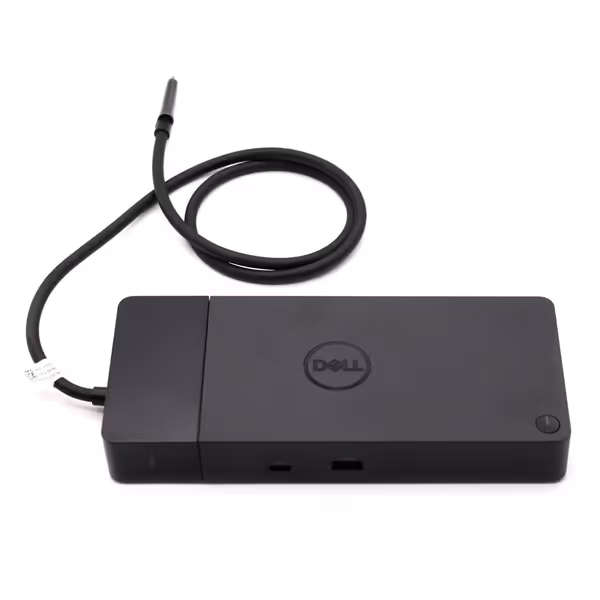
Dell WD22TB4 Thunderbolt 4 Dock
Modular Thunderbolt 4 dock delivering 40Gb/s and 130W power.
$198.89
Data Transfer Rate40 Gb/s
Data Transfer Rate40 Gb/s
Pros
Modular design for future upgrades and easy maintenance.
Multiple 4K display support, extensive port selection.
Cons
Some users report intermittent 4K monitor flickering.
Mixed experiences with new vs. refurbished units received.
Works well with Dell XPS 13 9300, handles multiple monitors, and delivers 130W charging.
Works well with Dell XPS 13 9300, handles multiple monitors, and delivers 130W charging.
For example, the Dell ThunderBolt 4 Dock (WD22TB4) includes Thunderbolt 4's deterministic USB features that some industrial deployments require (when paired with compatible Windows endpoints). But do not assume it works with your Raspberry Pi-based edge node; verify the USB controller compatibility with your specific OS version.
How Can I Achieve Reliable Multi-Display Configurations with IoT Edge Workstations?
Dual 4K displays on industrial workstations fail for three documented reasons:
-
Insufficient bandwidth: USB-C Alt Mode only delivers 18Gbps, enough for one 4K@60Hz display. For dual 4K@60Hz, you need Thunderbolt 4 (40Gbps) or MST-capable DisplayPort 1.4 with DSC.
-
OS-specific limitations: macOS restricts external displays on M1/M2 chips without Thunderbolt 4. Verify Apple's spec sheet, not community forums.
-
Cable quality issues: Non-E-marked cables often fail at 2m+ lengths. Use certified cables with E-Marking chips for >1m runs.
Action steps:
- Document your exact workstation model, OS version, and display requirements
- Check both dock AND laptop specifications for "dual 4K@60Hz" support
- Use only certified cables with matching bandwidth rating (e.g., Thunderbolt 4-certified for 40Gbps)
- Set OS-specific display settings: On Windows, disable "Fast Startup," which causes display enumeration failures
What Are Top Failure Points in Edge Docking Deployments, and How Can I Prevent Them?
Three documented failure patterns in industrial environments:
1. Power Cycling Disrupts Edge Node Operations
Symptom: Dock power cycling causes edge devices to reboot
Root cause: Insufficient power budget or uncoordinated USB suspend/resume
Fix: Verify dock delivers sustained 100W+ PD (Power Delivery) and check OS power management settings: See our vetted 100W+ docking stations for models that sustain full power without cycling.
- Windows: Disable "USB selective suspend" in Power Options
- Linux: Set
usbcore.autosuspendkernel parameter to -1
2. Network Handoff Fails During Critical Operations
Symptom: Edge node loses connectivity during tool changes or shift handoffs
Root cause: Network profile switching between dock and onboard NIC
Fix: Configure static network profiles for docked/undocked states. On Windows, use Set-NetConnectionProfile PowerShell command to set dock NIC to "Private" network type.
3. USB Peripherals Disconnect During Display Changes
Symptom: Industrial sensors disconnect when changing display resolution
Root cause: MST reconfiguration consumes USB bandwidth
Fix: Use separate USB controller for critical peripherals (many enterprise docks have dedicated ports for this)
How Do I Create a "Known-Good" Pairing Matrix for Mixed-Device Environments?
Start with this framework:
- Categorize workstations by three factors: CPU platform (Intel/AMD/Apple silicon), GPU type (integrated/discrete), and OS version
- Document requirements per category: displays, critical USB devices, network needs
- Test and verify each dock against requirements, never assume compatibility
- Publish exact settings: Include OS-specific toggles, firmware baselines, and cable specs
Your matrix should specify:
- Dock model (e.g., "Dell WD22TB4")
- Required firmware version (e.g., "v1.2.8 or later")
- Exact cable specs ("Certified Thunderbolt 4, 2m maximum")
- OS-specific settings ("Windows: Disable 'USB selective suspend'")
- Verified outcome ("Dual 4K@60Hz + 100W PD + GigE")
Final Recommendations: From Guesswork to Guaranteed Outcomes
Industrial environments can't afford unreliable docking. Follow these steps to eliminate guesswork:
- Document before you deploy: List exact requirements for each workstation type
- Verify spec sheets against real testing: Do not accept "should work" claims
- Standardize on universal interfaces: Thunderbolt 4 provides the most consistent edge device connectivity
- Never cut corners on cables: Use certified cables matching your dock's bandwidth rating
Remember the core principle: Precise pairings make universality real. When you translate specs into steps, and steps into consistent outcomes, your team stops fighting docking issues and starts delivering reliable edge computing workstations.
With your known-good matrix in hand, you'll achieve what most teams only hope for: one-cable certainty where every plug-in delivers the intended power, network, and exact pixels (without surprises). For deeper technical documentation on USB controller compatibility with industrial edge devices, consult the USB-IF's Industrial Profile specifications released this year.