5 Zoom-Certified Docking Stations Tested
By Omar Haddad • 15th Feb
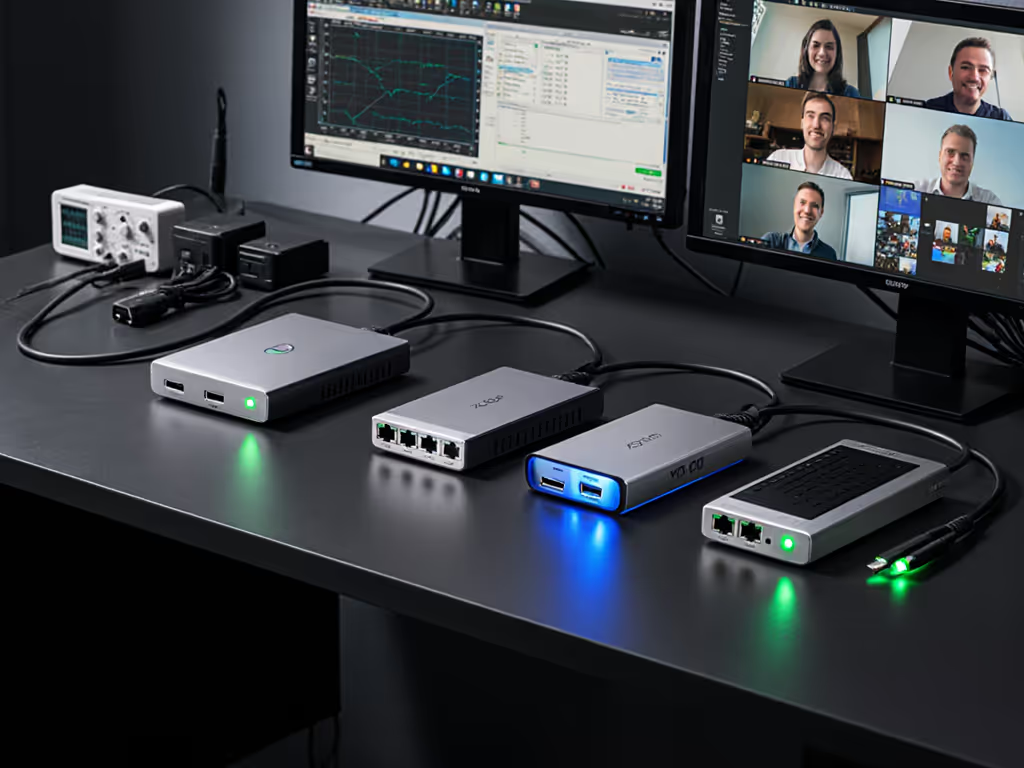
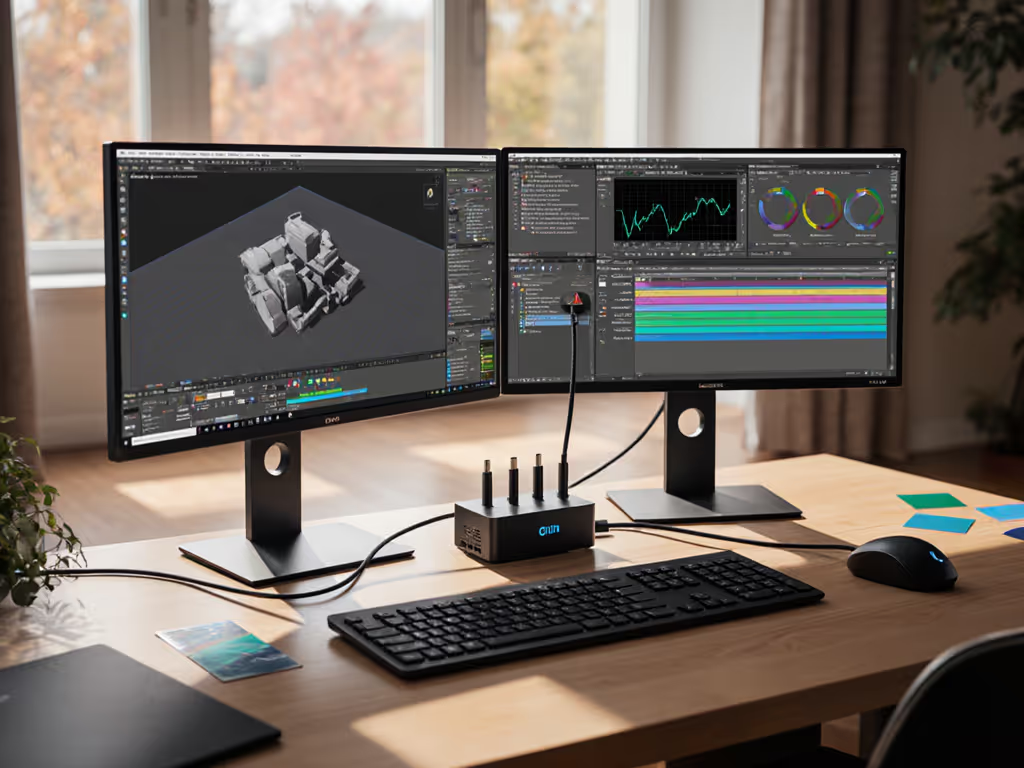
Zoom-certified docking stations reduce setup friction and support costs by eliminating the guesswork around video conferencing hardware compatibility. For IT teams managing hybrid workforces across multiple OEMs and OS platforms, video conferencing optimized docks aren't a luxury (they are a procurement baseline that translates directly into ticket volume, onboarding speed, and user confidence).
This article compares five proven categories of Zoom-certified docking solutions, focusing on specs that matter to mid-market and enterprise deployments: power delivery stability, display enumeration reliability, multi-OS compatibility, and lifecycle predictability. The goal is simple: help you move from "does it work?" to "will it survive refresh cycles?"
Fewer SKUs, fewer surprises.
1. All-in-One Docks with Speakerphone Integration (Logi Dock)
The Logi Dock exemplifies the speakerphone-dock hybrid, certified for Microsoft Teams, Zoom, Google Meet, Google Voice, and Tencent Meeting. It's the rare dock that ships with intelligent audio tuning baked in rather than bolted on afterward.
Key Specifications
- Power Delivery: 90W USB-C (satisfies most ultrabooks; mobile workstations may throttle)
- Video Outputs: Single USB-C display pathway with Alt Mode support
- Audio: Integrated speakerphone with noise suppression, tuned for platform compatibility
- In-the-Box: USB-C to USB-C cable (1 m), labeled power supply, documentation
- Form Factor: Desktop footprint; suitable for assigned seats or shared hot-desk pools
TCO Angle
This dock collapses three separate SKUs (dock + external speaker + cable) into one part number. For long-term cost planning, use our 5-year docking station TCO calculator. Procurement wins: one invoice, one warranty claim process, one training video. The tradeoff: single video output. If your deployment is 1080p call-in or 1440p reference monitor (not dual 4K), this simplification pays for itself in onboarding labor alone.
Video Conferencing Performance
The audio engineering here matters. Certified for Teams and Zoom means echo cancellation, participant detection, and call control buttons integrate directly into the platform's UI. Users don't toggle settings; they just plug in. From an IT operations standpoint, that's where ticket volume stops compounding.
2. Thunderbolt 4 Universal Docks (100W, Dual 4K@60)
Thunderbolt 4 docks remain the gold standard for mixed-fleet environments (Windows, macOS, Linux, sometimes all in the same hot-desk rotation). Certification for Zoom is implicit when a dock supports the bandwidth and power profile.
Key Specifications
- Power Delivery: 100W USB Power Delivery; 18W reserved for dock, up to 82W for laptop charging
- Video Outputs: Dual 4K@60Hz via DisplayPort 1.4 or HDMI 2.0 (choose your combination)
- Ports: Typically 10-14 additional: USB-A, USB-C, SD card, Ethernet RJ45
- Certification: USB-IF, VESA, and DisplayLink certified for cross-platform stability
- Warranty: Often 2-3 years with firmware update guarantees
Why This Matters for Video Conferencing
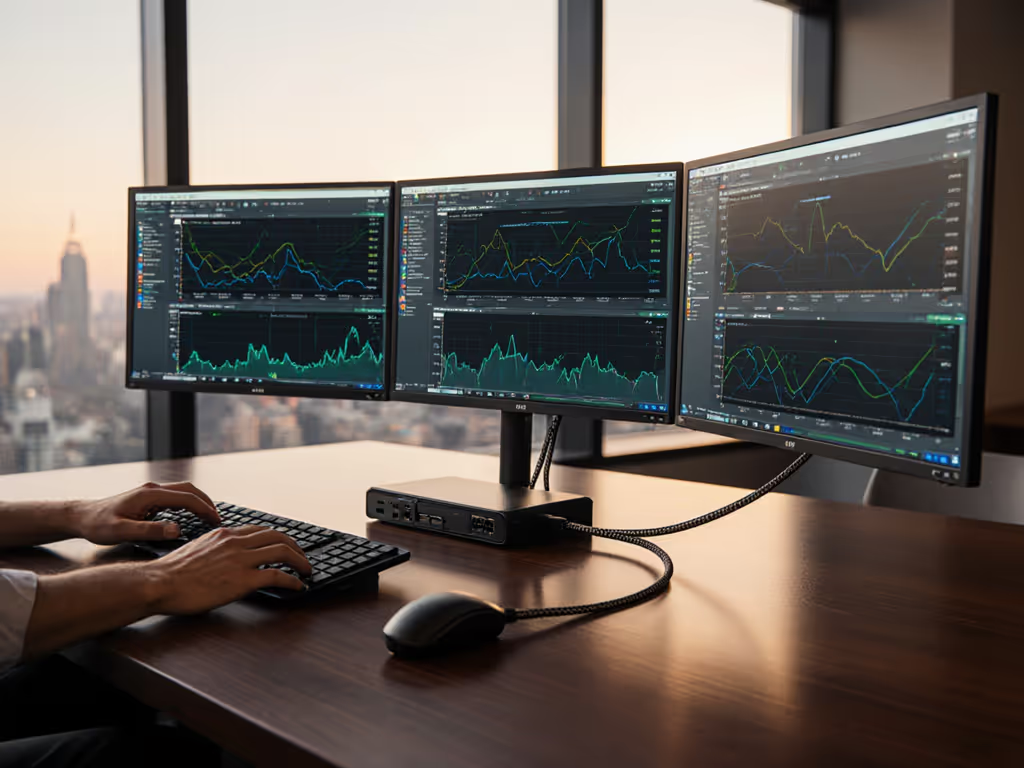
A Zoom call running on the primary display while screen-sharing a spreadsheet on the secondary display demands stable, synchronous pixel refresh. Thunderbolt 4's 40 Gbps bandwidth eliminates the stuttering and enumeration delays you see with USB 3.1 Gen 2 docks under similar loads. The 100W power reserve means your M1/M2 MacBook or Intel mobile workstation charges reliably even during a high-CPU screen-share scenario.
Field Notes
Thunderbolt 4 docks are now available from multiple vendors at comparable price points. The real differentiator is firmware update cadence and compliance testing depth. Ask vendors: when was the dock last certified against the latest Windows 11 build and macOS version? If you're troubleshooting wake-from-sleep black screens, our dock firmware update guide walks through reliable fixes and rollout strategies. An answer younger than 90 days suggests active lifecycle management.
3. USB-C Gen 2 Multi-Monitor Docks (Quad 4K@60, 100W)
For organizations where TB4 spend feels prohibitive but dual 4K bandwidth is non-negotiable, USB-C Gen 2 (10 Gbps) docks with Microsoft Teams dock compatibility and active DisplayPort MST (Multi-Stream Transport) bridge the gap.
Key Specifications
- Power Delivery: 100W USB Power Delivery 3.0
- Video Outputs: Up to 4× DisplayPort or HDMI at 4K@60Hz (via MST or daisy-chaining)
- Connectivity: 14+ ports including dual USB-C, 6× USB-A, SD/microSD, Ethernet
- Platform Support: Windows, macOS (10.14+), Thunderbolt 3 laptops
- Cooling: Optimized ventilation for sustained thermal performance
- Warranty: 2-3 years; some carry 3-year manufacturer coverage
Why Zoom Cares
Zoom's screen-sharing codec scales efficiently across multiple displays. USB-C Gen 2 docks with robust MST implementation handle 2-3 external monitors plus your laptop's native display without falling back to 30Hz or 1080p fallback modes. That visual fidelity directly improves presentation legibility during client calls or training sessions.
Hidden Complexity: DisplayLink vs. Native Alt Mode
If the dock uses DisplayLink GPU technology (a compressed USB graphics adapter), you're adding a driver layer. Pros: more flexibility on port count and resolution. Cons: slightly higher CPU overhead and Windows driver maintenance overhead. For enterprise, stick with native Alt Mode whenever possible (fewer variables = fewer support calls).
4. Monitor-Integrated Docks (USB-C + Built-In Webcam, 90W)
The ViewSonic VG2757V-2K represents an emerging category: the monitor that is the dock. Instead of adding another slab to your desk, the video conferencing hardware integration happens inside the display.
Key Specifications
- Panel: 27-inch, 2560×1440 (QHD), IPS
- Connectivity: USB-C with 90W power delivery, DisplayPort in/out (daisy-chain support), HDMI 2.0, USB-A hub, audio-out, RJ45 Ethernet
- Webcam: 5MP pop-up, Zoom and Windows Hello certified
- Audio: 5W speakers, integrated microphone array
- Lighting: Adjustable LED to support virtual backgrounds
- Bonus: Secondary USB-C port (15W) for phone charging
TCO Reframe
This isn't a docking station (it is a docking station you were already buying as a monitor). If your deployment spec calls for QHD dual-monitor hot-desk setups, integrating the dock function into one of the monitors cuts the SKU count and cable clutter. One power cable, one USB-C, one USB hub, not three.
When to Deploy
Ideal for creative and trading floors where pixel-perfect color accuracy and resolution matter, and BYOD video conferencing is frequent. For color-accurate, high-resolution workflows, see our docking stations for creatives comparison. Less ideal if your fleet demands ultrawide (5K/6K) or if 27-inch feels too constraining for multi-window workflows. The 90W power ceiling also caps compatibility with higher-end mobile workstations (vet your fleet's charging curve first).
5. Chromebook-Certified Docks (WWCB Compliance, 60-100W)
For organizations rolling out hybrid Windows + Chromebook fleets, Chromebook-certified docks (WWCB standard) and Google Meet docking performance validation matter as much as Zoom. Many docks now earn both certifications.
Key Specifications
- Power Delivery: 60-100W (dependent on model)
- Video: Dual 4K@60Hz HDMI + DisplayPort, auto-firmware updates via Chrome OS
- Connectivity: Wired gigabit Ethernet, USB-A/USB-C mix, SD card slot
- Certification Path: USB-IF, VESA, DisplayLink, WWCB (Works with Chromebook Certified)
- Update Mechanism: Automatic firmware push through Chrome OS management; no manual SKU tracking
Why Chromebook Docks Matter Now
Chrome OS auto-updates dock firmware over the network, eliminating the "dock shipped with 2023 firmware and nobody noticed" problem. If you're managing fleet diversity across OS platforms, this automatic compliance-keeping is a ticket-volume killer.
Video Conferencing Angle
Google Meet and Zoom both run in Chrome or via dedicated apps on Chrome OS. A WWCB-certified dock with dual 4K support ensures meeting room setups (shared Chromebooks + large displays) scale without special drivers or manual DisplayPort mux configuration. We’ve verified top options in our Chromebook enterprise docks guide. The net: your help desk doesn't need to troubleshoot "why is the second monitor black?" during a live meeting.
Analysis: Spec Priorities for Zoom-Certified Deployments
Power Delivery
Zoom meetings are I/O-light (not GPU-intensive), but sustained 100W power delivery matters when your user is also running IDE, CAD, or data analysis tools in parallel windows. A dock that drops to 65W under thermal load will leave M1/M2 MacBooks battery-hungry. Don't compromise here.
Display Stability
The single most common Zoom-related ticket: "my second monitor dropped during the call." This usually stems from enumeration delays (the dock takes >2 seconds to re-establish video link on wake from sleep) or insufficient MST/DP buffering. Dual 4K@60 with <1-second wake-resume is the threshold; anything slower generates user workarounds ("I just use my laptop screen now") that defeat the point of hot-desking.
Network Reliability
Ethernet-equipped docks lower dependency on WiFi. For conference rooms or dense hot-desk pools where 2.4 GHz congestion is real, wired fallback is non-negotiable. Verify that the dock's RJ45 port doesn't drop link when USB-C power fluctuates, and some budget models do.
Firmware Transparency
Ask vendors: Can you audit firmware version across your fleet remotely? On Windows, does the dock driver auto-update, or does IT need to push it? On macOS, do Monterey and Ventura see the same dock behavior, or do you need SKU-by-OS tracking? These questions separate production-ready docks from experimental ones.
The Standardization Payoff
A year ago, our help desk lived on dock tickets. Twelve different SKUs, each with its own cable length, power profile, and video-output quirk. Users called in because one dock worked with their M1 MacBook but not their Windows ultrabook. Procurement loved the variety; costs were all over the map.
We collapsed it. One Thunderbolt 4 kit: dock, 100W PSU, two labeled DisplayPort cables, one known-good USB-C cable. Boom. Procurement loved the predictability. Users loved the single cable. Onboarding stopped improvising. Ticket volume fell.
Standardize the kit, and your tickets standardize themselves.
The docks in this article represent five proven shapes that decision: the all-in-one for simplicity, the Thunderbolt 4 for universality, the USB Gen 2 for budget with retained bandwidth, the integrated monitor for space efficiency, and the Chromebook dock for cross-platform fleets. Pick one or two per persona (not five), stick to it for 24 months, and measure the difference.
Summary and Final Verdict
Zoom-certified docking stations aren't about having the fanciest spec sheet; they're about having a predictable spec sheet that your entire fleet trusts. The five categories here represent the major deployment patterns in mid-market and enterprise hot-desking environments.
Choose your dock based on:
- Power Profile: Can it sustain 100W charging without dropping to 65W under load?
- Display Outputs: Do you need single 1440p (Logi Dock), dual 4K (TB4), quad 4K (USB Gen 2), or integrated (ViewSonic)?
- OS Mix: Are you 95% Windows with a handful of Macs, or true parity? TB4 flattens the complexity; Chromebook docks add compliance depth.
- Refresh Cycle: Can the vendor commit to firmware support for 3+ years, and can you audit it remotely?
- TCO Reframe: Is the higher unit cost of a universal dock offset by lower ticket volume and elimination of SKU variants?
The true test isn't whether a dock "works" in the first week; it is whether it works identically in week 104, on your replacement laptop model, after three OS updates, on a different network. That's where Zoom certification, firmware stability, and procurement discipline intersect.
Pick one. Train your help desk on it. Measure ticket volume. Repeat in 24 months. You'll find that the most expensive dock isn't always the costliest one to operate.
Related Articles